Getting Started with EktuPy
This guide will help you create your first EktuPy program.
The Interface
When you open EktuPy, you’ll see:
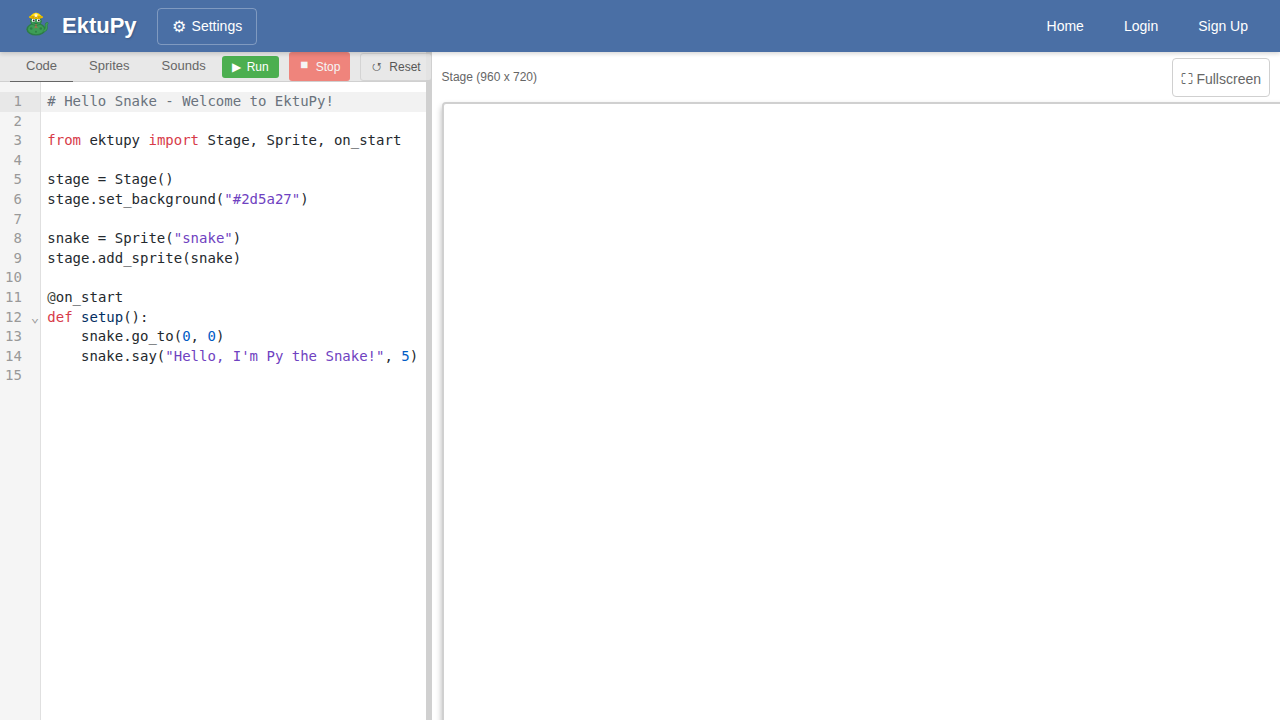
- Code Editor (left): Write your Python code here
- Stage (right): Your sprites appear and move here
- Console (bottom right): See output from
print()and error messages - Toolbar: Run, Stop, Reset buttons and example loader
Your First Program
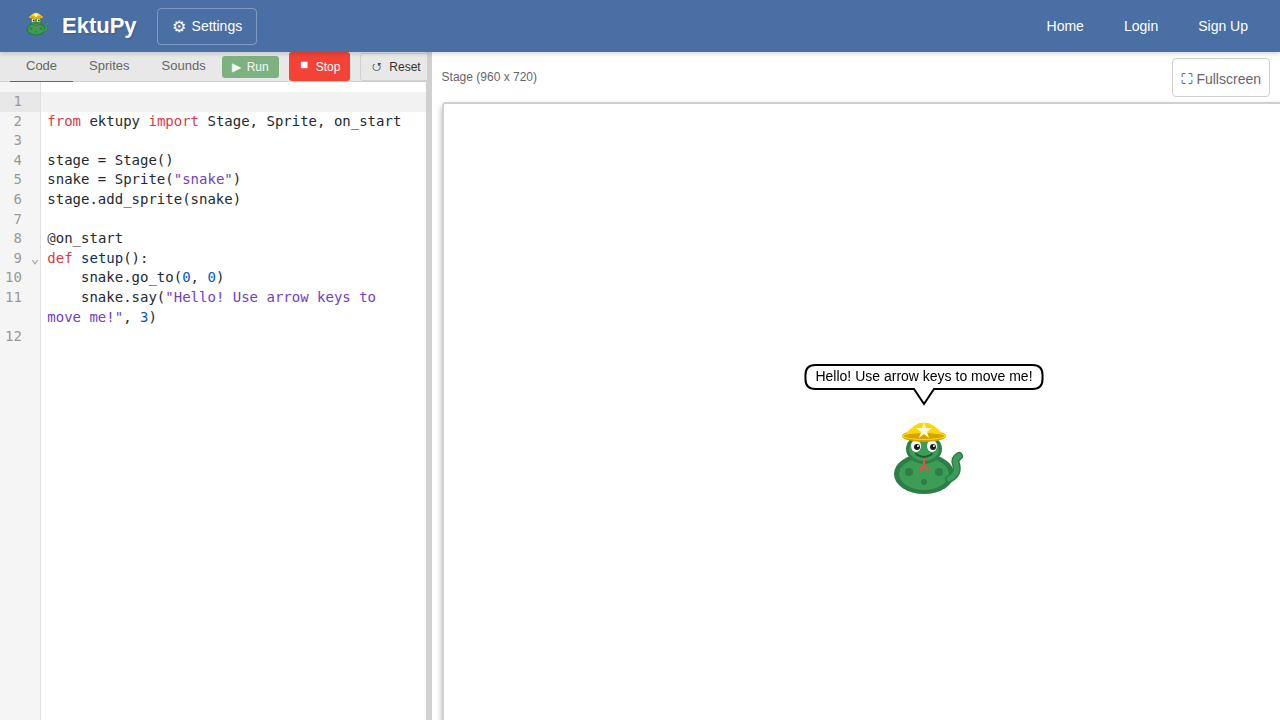
Let’s create a simple program that shows a sprite with a speech bubble.
from ektupy import Stage, Sprite, on_start

# Create the stage (fixed at 960x720 pixels)
stage = Stage()

# Create a sprite using its asset name
snake = Sprite("snake")

# Add the sprite to the stage
stage.add_sprite(snake)

# This runs when the program starts
@on_start
def setup():
    snake.go_to(0, 0)
    snake.say("Hello, World!")
Click Run (or press Ctrl+Enter) to see the result:
Understanding the Code
Stage
The Stage is the canvas where everything happens. It has a fixed size of 960x720 pixels:
stage = Stage()  # Creates a 960x720 stage
stage.set_background("#87CEEB")  # Set background color
Sprites
Sprite objects are the characters in your program. Use asset names to create them:
sprite = Sprite("snake")  # Use asset name
stage.add_sprite(sprite)
Event Decorators
Decorators tell EktuPy when to run your functions:
@on_start
def setup():
    # Runs once when program starts
    pass

@on_forever
def game_loop():
    # Runs continuously (every frame)
    pass
Adding Movement
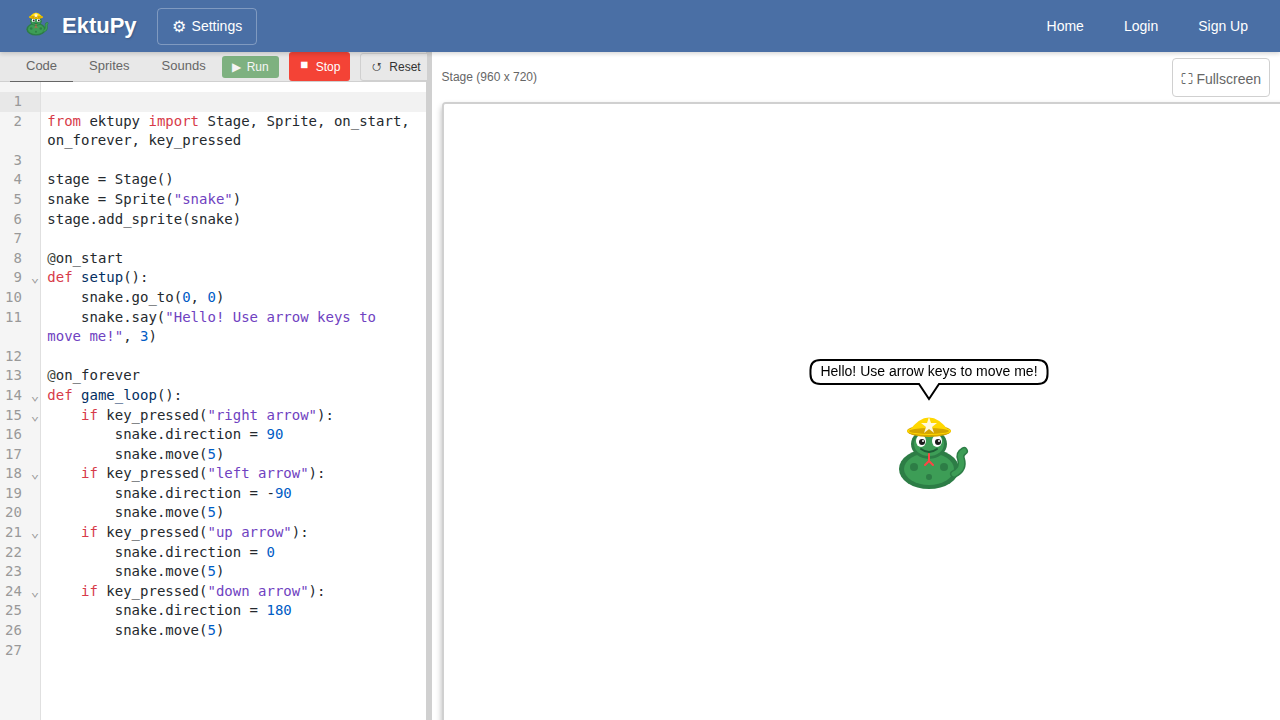
Let’s make the sprite move with arrow keys:
from ektupy import Stage, Sprite, on_start, on_forever, key_pressed

stage = Stage()
snake = Sprite("snake")
stage.add_sprite(snake)

@on_start
def setup():
    snake.go_to(0, 0)
    snake.say("Use arrow keys to move me!", 3)

@on_forever
def game_loop():
    if key_pressed("right arrow"):
        snake.direction = 90
        snake.move(5)
    if key_pressed("left arrow"):
        snake.direction = -90
        snake.move(5)
    if key_pressed("up arrow"):
        snake.direction = 0
        snake.move(5)
    if key_pressed("down arrow"):
        snake.direction = 180
        snake.move(5)
Using Print for Debugging
You can use print() to output messages to the console:
@on_start
def setup():
    print("Program started!")
    snake.go_to(0, 0)
    print(f"Snake position: ({snake.x}, {snake.y})")
Output appears in the Console panel. Errors appear in red.
Non-Blocking Waits
Use wait() to pause without freezing the program:
from ektupy import Stage, Sprite, on_start, wait

stage = Stage()
cat = Sprite("cat")
stage.add_sprite(cat)

@on_start
def setup():
    cat.say("Hello!")
    wait(2)  # Wait 2 seconds
    cat.say("Goodbye!")
    wait(2)
    cat.say("")  # Clear speech bubble
Per-Sprite Scripts
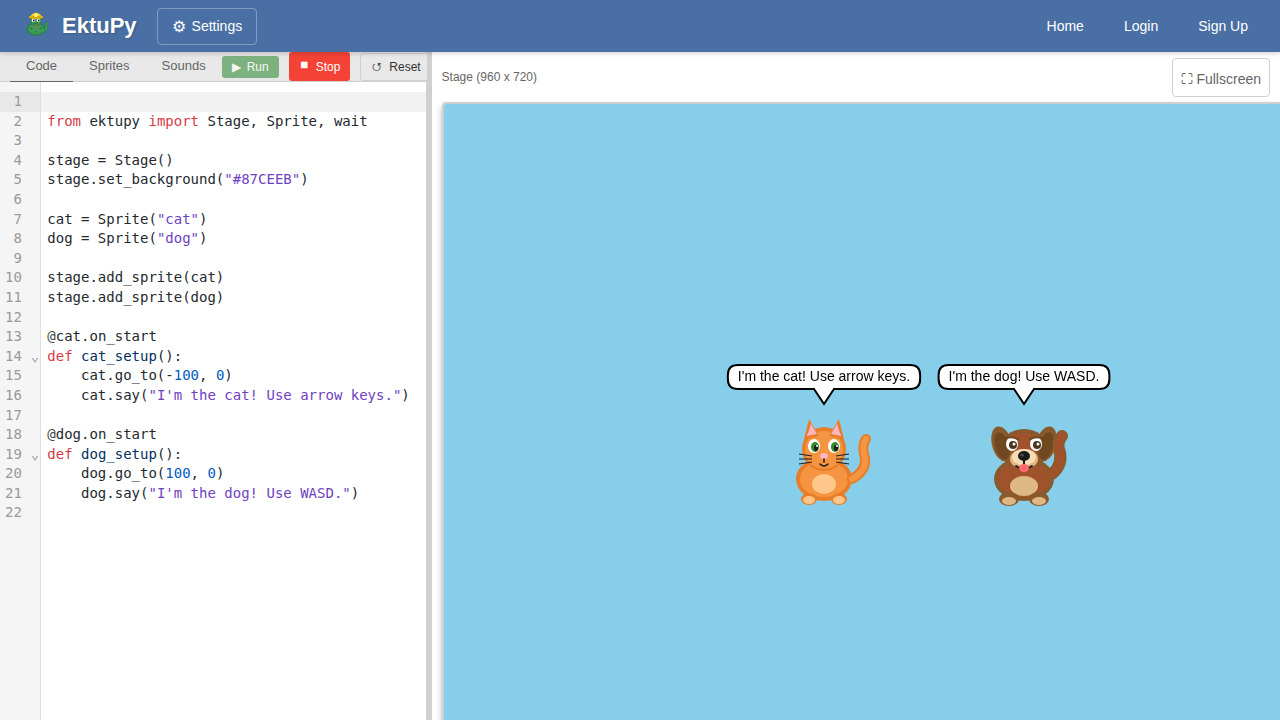
Each sprite can have its own independent code:
from ektupy import Stage, Sprite

stage = Stage()

cat = Sprite("cat")
dog = Sprite("dog")

stage.add_sprite(cat)
stage.add_sprite(dog)

# Cat's scripts
@cat.on_start
def cat_setup():
    cat.go_to(-100, 0)
    cat.say("I'm the cat!")

@cat.on_key_press("up arrow")
def cat_up():
    cat.change_y(10)

# Dog's scripts
@dog.on_start
def dog_setup():
    dog.go_to(100, 0)
    dog.say("I'm the dog!")

@dog.on_key_press("w")
def dog_up():
    dog.change_y(10)
Next Steps
- Read the API Reference for all available methods
- Check out Examples for more code samples
- Configure the editor in Settings (theme, LSP, type checking)
- Experiment with drawing using the pen methods
- Try creating clones for particle effects or enemies