EktuPy Documentation
EktuPy is a Python library for creating Scratch-like games in the browser. It runs entirely in the browser using PyScript/Pyodide, making it perfect for educational programming.
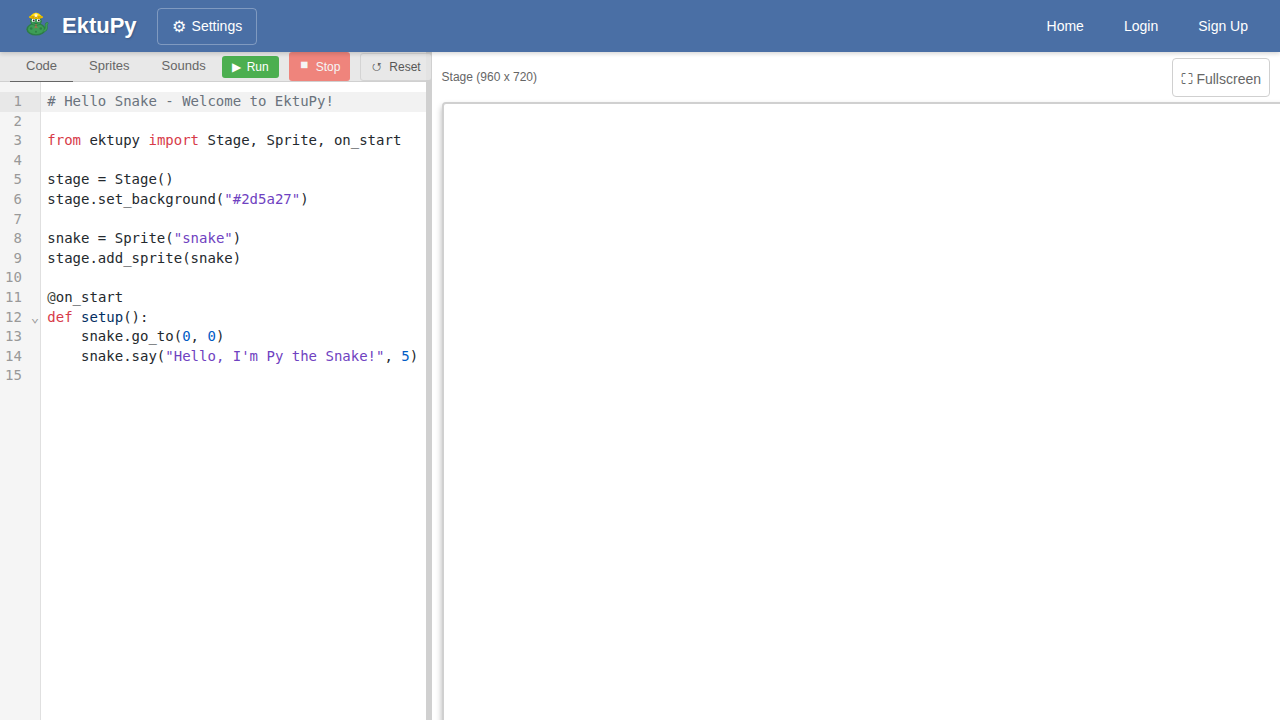
Features
- Scratch-like API: Familiar blocks-style programming with Python syntax
- Sprite-based graphics: Create and control multiple sprites
- Event-driven programming: Respond to keyboard, mouse, and custom events
- Per-sprite scripts: Each sprite can have its own independent code (like Scratch)
- Non-blocking animations: Smooth glides and waits without freezing
- Pen drawing: Draw lines and shapes on the stage
- Collision detection: Detect when sprites touch each other or edges
- Cloning: Create copies of sprites at runtime
Quick Start
from ektupy import Stage, Sprite, on_start, on_forever, key_pressed

# Create stage and sprite
stage = Stage()
cat = Sprite("cat")
stage.add_sprite(cat)

@on_start
def setup():
    cat.go_to(0, 0)
    cat.say("Hello! Use arrow keys to move me!")

@on_forever
def game_loop():
    if key_pressed("right arrow"):
        cat.change_x(5)
    if key_pressed("left arrow"):
        cat.change_x(-5)
Documentation
- Getting Started - Installation and first steps
- API Reference - Complete API documentation
- Examples - Code examples with screenshots
Coordinate System
EktuPy uses a Scratch-like coordinate system:
- Stage size is fixed at 960x720 pixels
- Center of stage is (0, 0)
- X increases to the right (-480 to 480)
- Y increases upward (-360 to 360)
- Direction 0 = up, 90 = right, 180 = down, -90 = left
Getting Started with EktuPy
This guide will help you create your first EktuPy program.
The Interface
When you open EktuPy, you’ll see:
- Code Editor (left): Write your Python code here
- Stage (right): Your sprites appear and move here
- Console (bottom right): See output from
print()and error messages - Toolbar: Run, Stop, Reset buttons and example loader
Your First Program
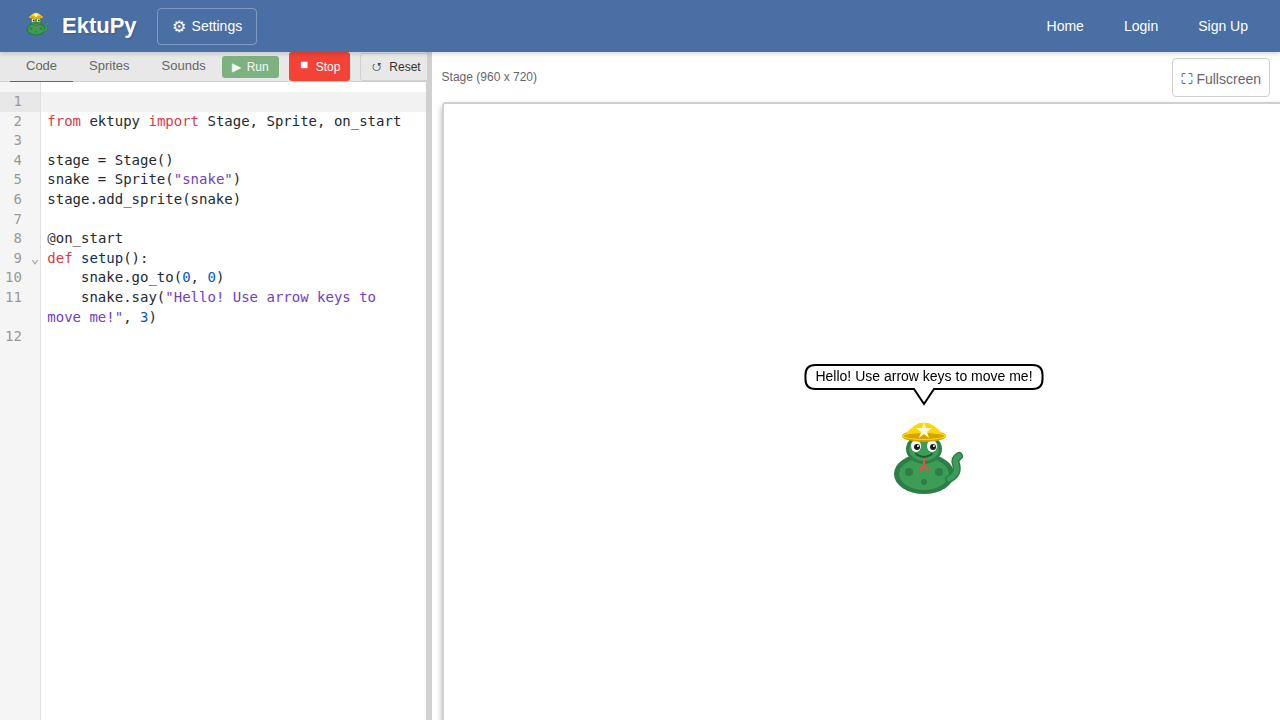
Let’s create a simple program that shows a sprite with a speech bubble.
from ektupy import Stage, Sprite, on_start

# Create the stage (fixed at 960x720 pixels)
stage = Stage()

# Create a sprite using its asset name
snake = Sprite("snake")

# Add the sprite to the stage
stage.add_sprite(snake)

# This runs when the program starts
@on_start
def setup():
    snake.go_to(0, 0)
    snake.say("Hello, World!")
Click Run (or press Ctrl+Enter) to see the result:
Understanding the Code
Stage
The Stage is the canvas where everything happens. It has a fixed size of 960x720 pixels:
stage = Stage()  # Creates a 960x720 stage
stage.set_background("#87CEEB")  # Set background color
Sprites
Sprite objects are the characters in your program. Use asset names to create them:
sprite = Sprite("snake")  # Use asset name
stage.add_sprite(sprite)
Event Decorators
Decorators tell EktuPy when to run your functions:
@on_start
def setup():
    # Runs once when program starts
    pass

@on_forever
def game_loop():
    # Runs continuously (every frame)
    pass
Adding Movement
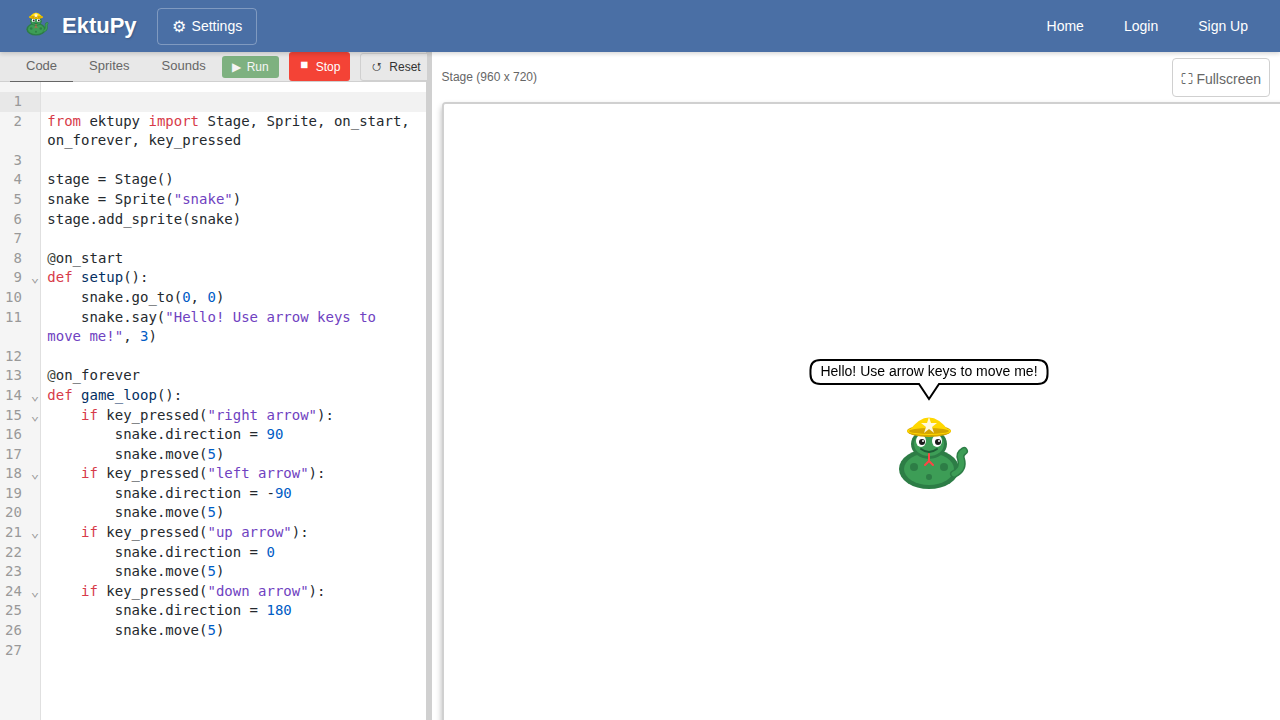
Let’s make the sprite move with arrow keys:
from ektupy import Stage, Sprite, on_start, on_forever, key_pressed

stage = Stage()
snake = Sprite("snake")
stage.add_sprite(snake)

@on_start
def setup():
    snake.go_to(0, 0)
    snake.say("Use arrow keys to move me!", 3)

@on_forever
def game_loop():
    if key_pressed("right arrow"):
        snake.direction = 90
        snake.move(5)
    if key_pressed("left arrow"):
        snake.direction = -90
        snake.move(5)
    if key_pressed("up arrow"):
        snake.direction = 0
        snake.move(5)
    if key_pressed("down arrow"):
        snake.direction = 180
        snake.move(5)
Using Print for Debugging
You can use print() to output messages to the console:
@on_start
def setup():
    print("Program started!")
    snake.go_to(0, 0)
    print(f"Snake position: ({snake.x}, {snake.y})")
Output appears in the Console panel. Errors appear in red.
Non-Blocking Waits
Use wait() to pause without freezing the program:
from ektupy import Stage, Sprite, on_start, wait

stage = Stage()
cat = Sprite("cat")
stage.add_sprite(cat)

@on_start
def setup():
    cat.say("Hello!")
    wait(2)  # Wait 2 seconds
    cat.say("Goodbye!")
    wait(2)
    cat.say("")  # Clear speech bubble
Per-Sprite Scripts
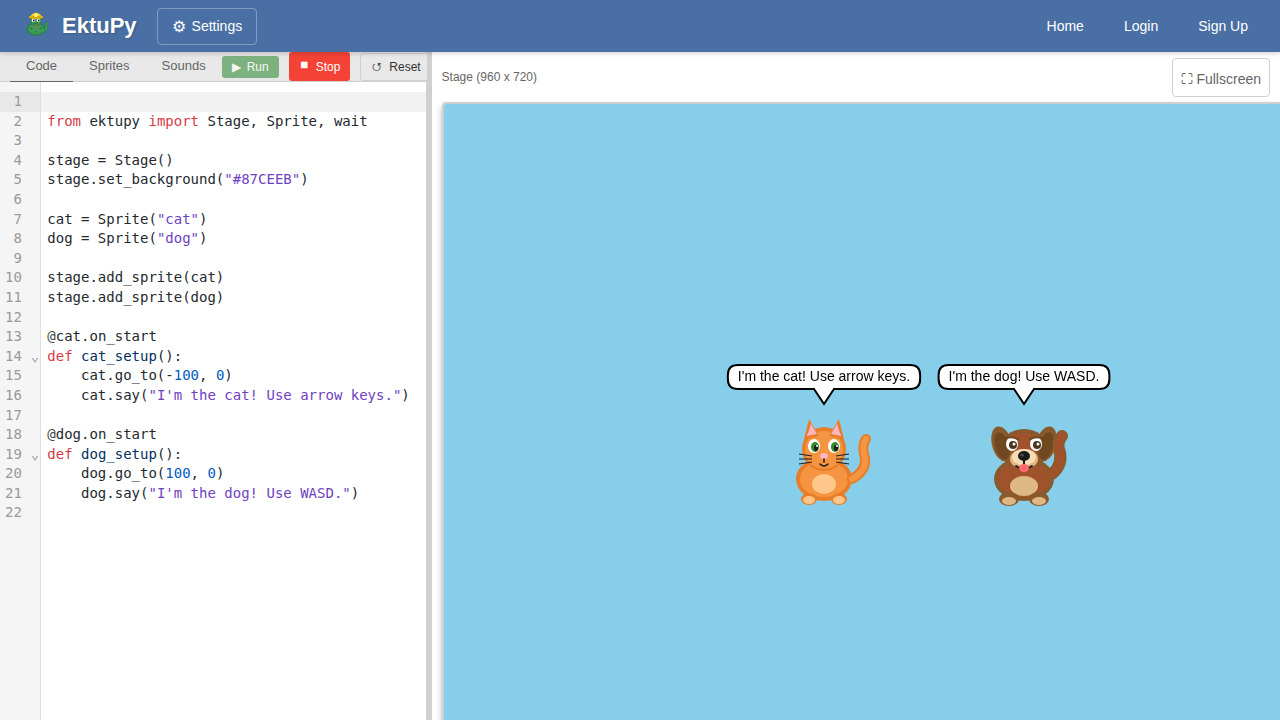
Each sprite can have its own independent code:
from ektupy import Stage, Sprite

stage = Stage()

cat = Sprite("cat")
dog = Sprite("dog")

stage.add_sprite(cat)
stage.add_sprite(dog)

# Cat's scripts
@cat.on_start
def cat_setup():
    cat.go_to(-100, 0)
    cat.say("I'm the cat!")

@cat.on_key_press("up arrow")
def cat_up():
    cat.change_y(10)

# Dog's scripts
@dog.on_start
def dog_setup():
    dog.go_to(100, 0)
    dog.say("I'm the dog!")

@dog.on_key_press("w")
def dog_up():
    dog.change_y(10)
Next Steps
- Read the API Reference for all available methods
- Check out Examples for more code samples
- Configure the editor in Settings (theme, LSP, type checking)
- Experiment with drawing using the pen methods
- Try creating clones for particle effects or enemies
EktuPy Examples
This page contains example programs demonstrating EktuPy features. Each example shows a different aspect of the API.
Hello World
The simplest EktuPy program - display a sprite with a speech bubble.
from ektupy import Stage, Sprite, on_start

stage = Stage()
snake = Sprite("snake")
stage.add_sprite(snake)

@on_start
def setup():
    snake.go_to(0, 0)
    snake.say("Hello! Use arrow keys to move me!", 3)
Key concepts: Stage(), Sprite(), @on_start, say()
Arrow Key Movement
Move a sprite around the stage using arrow keys.
from ektupy import Stage, Sprite, on_start, on_forever, key_pressed

stage = Stage()
snake = Sprite("snake")
stage.add_sprite(snake)

@on_start
def setup():
    snake.go_to(0, 0)
    snake.say("Hello! Use arrow keys to move me!", 3)

@on_forever
def game_loop():
    if key_pressed("right arrow"):
        snake.direction = 90
        snake.move(5)
    if key_pressed("left arrow"):
        snake.direction = -90
        snake.move(5)
    if key_pressed("up arrow"):
        snake.direction = 0
        snake.move(5)
    if key_pressed("down arrow"):
        snake.direction = 180
        snake.move(5)
Key concepts: @on_forever, key_pressed(), direction, move()
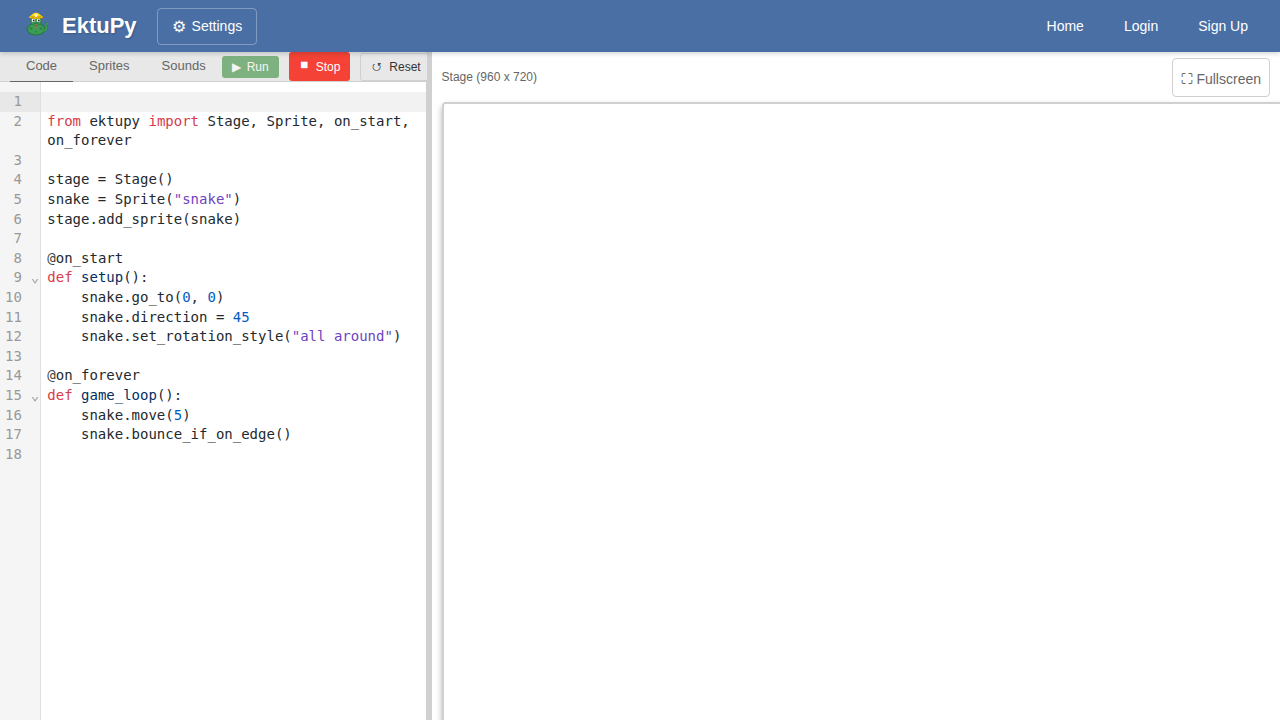
Bouncing Ball
A sprite that bounces around the stage continuously.
from ektupy import Stage, Sprite, on_start, on_forever

stage = Stage()
snake = Sprite("snake")
stage.add_sprite(snake)

@on_start
def setup():
    snake.go_to(0, 0)
    snake.direction = 45
    snake.set_rotation_style("all around")

@on_forever
def game_loop():
    snake.move(5)
    snake.bounce_if_on_edge()
Key concepts: set_rotation_style(), bounce_if_on_edge()
Drawing with Pen
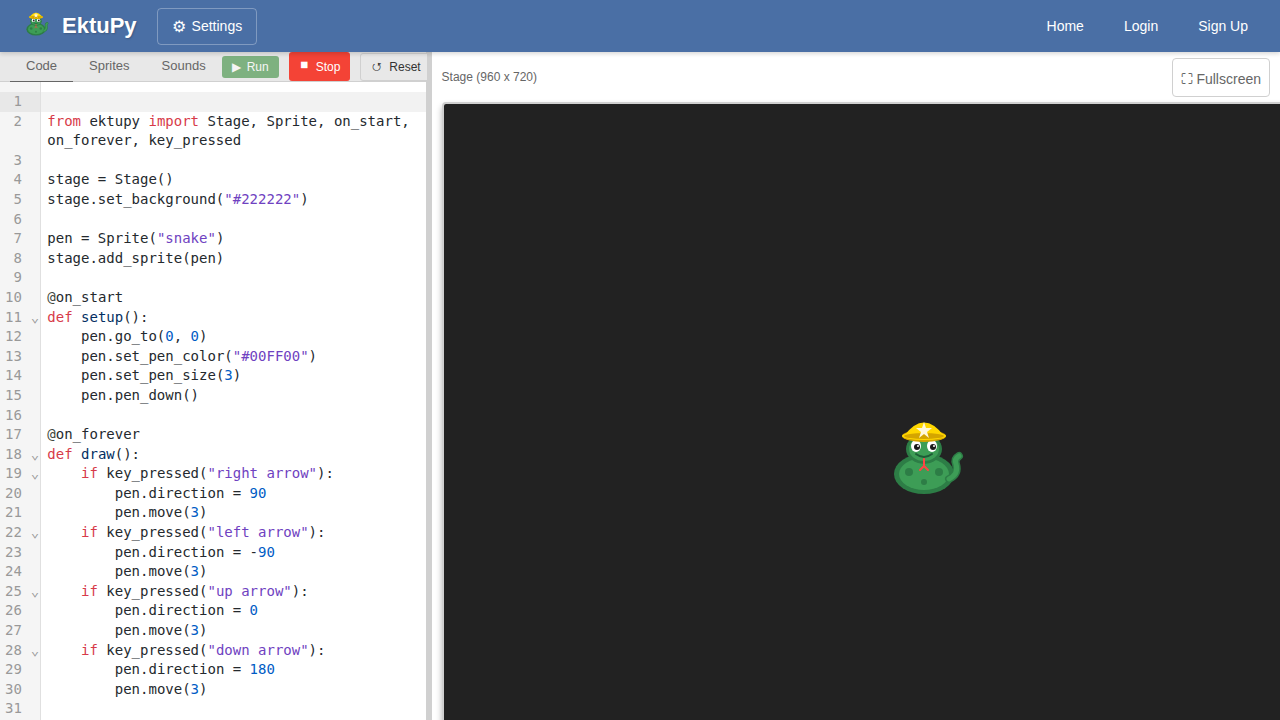
Use the pen to draw shapes as the sprite moves.
from ektupy import Stage, Sprite, on_start, on_forever, key_pressed

stage = Stage()
stage.set_background("#222222")

pen = Sprite("snake")
stage.add_sprite(pen)

@on_start
def setup():
    pen.go_to(0, 0)
    pen.set_pen_color("#00FF00")
    pen.set_pen_size(3)
    pen.pen_down()

@on_forever
def draw():
    if key_pressed("right arrow"):
        pen.direction = 90
        pen.move(3)
    if key_pressed("left arrow"):
        pen.direction = -90
        pen.move(3)
    if key_pressed("up arrow"):
        pen.direction = 0
        pen.move(3)
    if key_pressed("down arrow"):
        pen.direction = 180
        pen.move(3)
    if key_pressed("c"):
        pen.clear()
    if key_pressed("space"):
        pen.pen_up()
        pen.go_to(0, 0)
        pen.pen_down()
Key concepts: pen_down(), pen_up(), set_pen_color(), set_pen_size(), clear()
Sound Effects
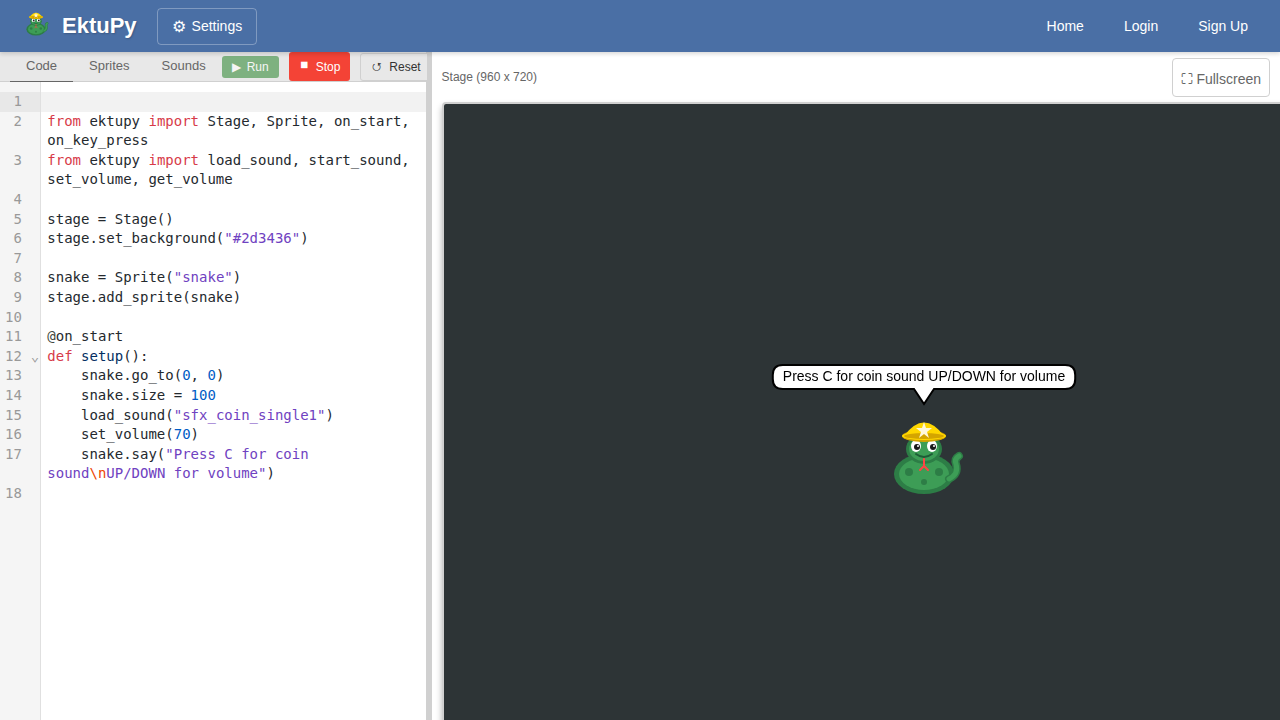
Play sounds with volume and pitch control.
from ektupy import Stage, Sprite, on_start, on_key_press
from ektupy import load_sound, start_sound, stop_all_sounds
from ektupy import set_volume, change_volume, get_volume
from ektupy import set_pitch_effect, clear_sound_effects

stage = Stage()
stage.set_background("#2d3436")

snake = Sprite("snake")
stage.add_sprite(snake)

# Load sounds - each returns a Sound object
coin_sound = load_sound("sfx_coin_single1")
jump_sound = load_sound("sfx_movement_jump1")
menu_sound = load_sound("sfx_menu_select1")

@on_start
def setup():
    snake.go_to(0, 0)
    snake.size = 100

    # Set initial volume
    set_volume(70)

    snake.say("Press: C=coin J=jump\nUP/DOWN=volume")

@on_key_press("c")
def play_coin():
    start_sound(coin_sound)
    snake.say(f"Coin! Vol: {get_volume()}%")

@on_key_press("j")
def play_jump():
    start_sound(jump_sound)
    snake.say(f"Jump! Vol: {get_volume()}%")

@on_key_press("up arrow")
def volume_up():
    change_volume(10)
    snake.say(f"Volume: {get_volume()}%")

@on_key_press("down arrow")
def volume_down():
    change_volume(-10)
    snake.say(f"Volume: {get_volume()}%")

@on_key_press("p")
def pitch_up():
    set_pitch_effect(60)
    snake.say("High pitch!")

@on_key_press("n")
def pitch_normal():
    clear_sound_effects()
    snake.say("Normal pitch")

@on_key_press("s")
def stop_sounds():
    stop_all_sounds()
    snake.say("Stopped!")
Key concepts: load_sound(), start_sound(), set_volume(), change_volume(), get_volume(), set_pitch_effect(), clear_sound_effects(), stop_all_sounds()
Costume Animation
Switch between costumes to create animation effects.
from ektupy import Stage, Sprite, on_start, on_forever

stage = Stage()
stage.set_background("#2d3436")

# Create a snake sprite - automatically loads all costumes
snake = Sprite("snake")
stage.add_sprite(snake)

frame_count = 0

@on_start
def setup():
    snake.go_to(0, 0)
    snake.size = 150
    # Show available costumes
    print("Available costumes:", snake.costumes)
    snake.say("I can change colors!", 2)

@on_forever
def animate():
    global frame_count
    frame_count += 1

    # Move in a circle
    snake.turn_right(3)
    snake.move(5)

    # Change costume every 20 frames
    if frame_count % 20 == 0:
        snake.next_costume()
        print(f"Now wearing: {snake.costume_name}")
Key concepts: costumes, next_costume(), costume_name, switch_costume()

Ghost Effect (Transparency)
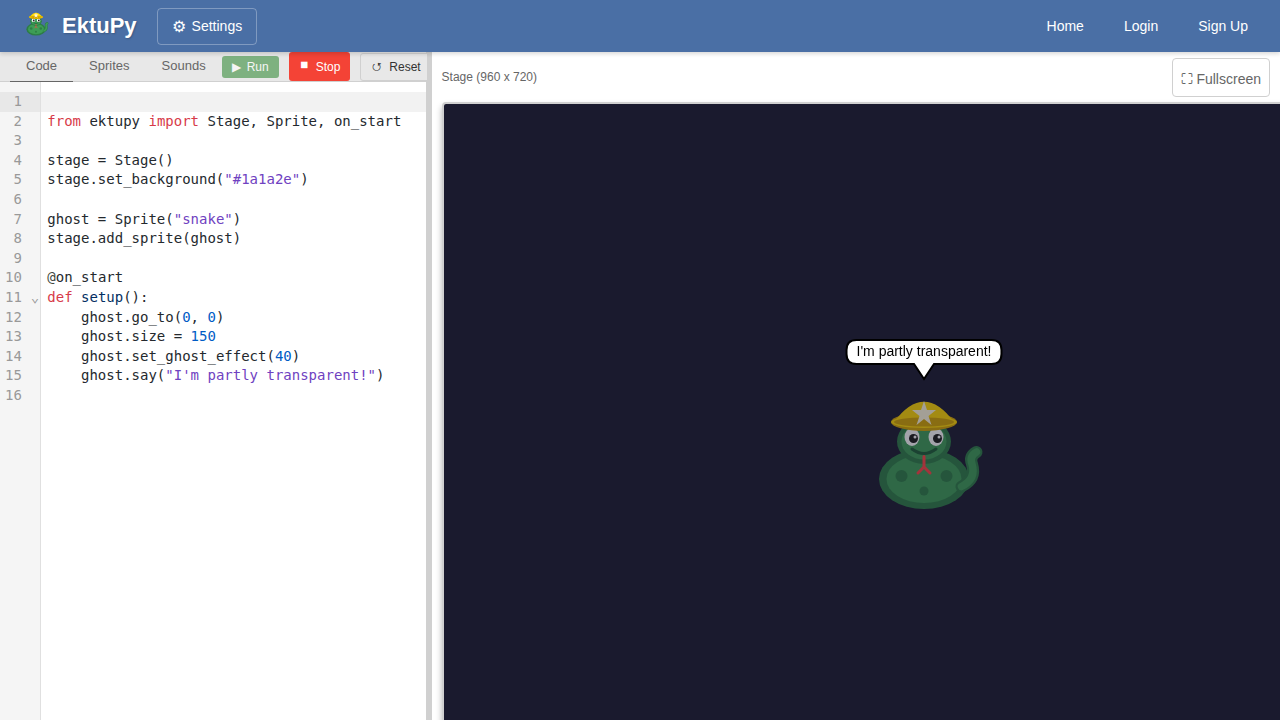
Make sprites fade in and out using the ghost effect.
from ektupy import Stage, Sprite, on_start, on_forever, on_key_press

stage = Stage()
stage.set_background("#1a1a2e")

ghost = Sprite("snake")
stage.add_sprite(ghost)

fade_direction = 1  # 1 = fading out, -1 = fading in
ghost_value = 0

@on_start
def setup():
    ghost.go_to(0, 0)
    ghost.size = 150
    ghost.say("I fade in and out!\nPress SPACE to reset", 3)

@on_forever
def animate():
    global fade_direction, ghost_value

    # Change ghost effect (transparency)
    ghost_value += fade_direction * 2

    # Reverse direction at limits
    if ghost_value >= 80:
        fade_direction = -1
    elif ghost_value <= 0:
        fade_direction = 1

    ghost.set_ghost_effect(ghost_value)

    # Move in a circle
    ghost.turn_right(2)
    ghost.move(3)
    ghost.bounce_if_on_edge()

@on_key_press("space")
def reset():
    ghost.set_ghost_effect(0)
    ghost.clear_graphic_effects()
    ghost.go_to(0, 0)
    ghost.say("Reset!")
Key concepts: set_ghost_effect(), change_ghost_effect(), clear_graphic_effects()
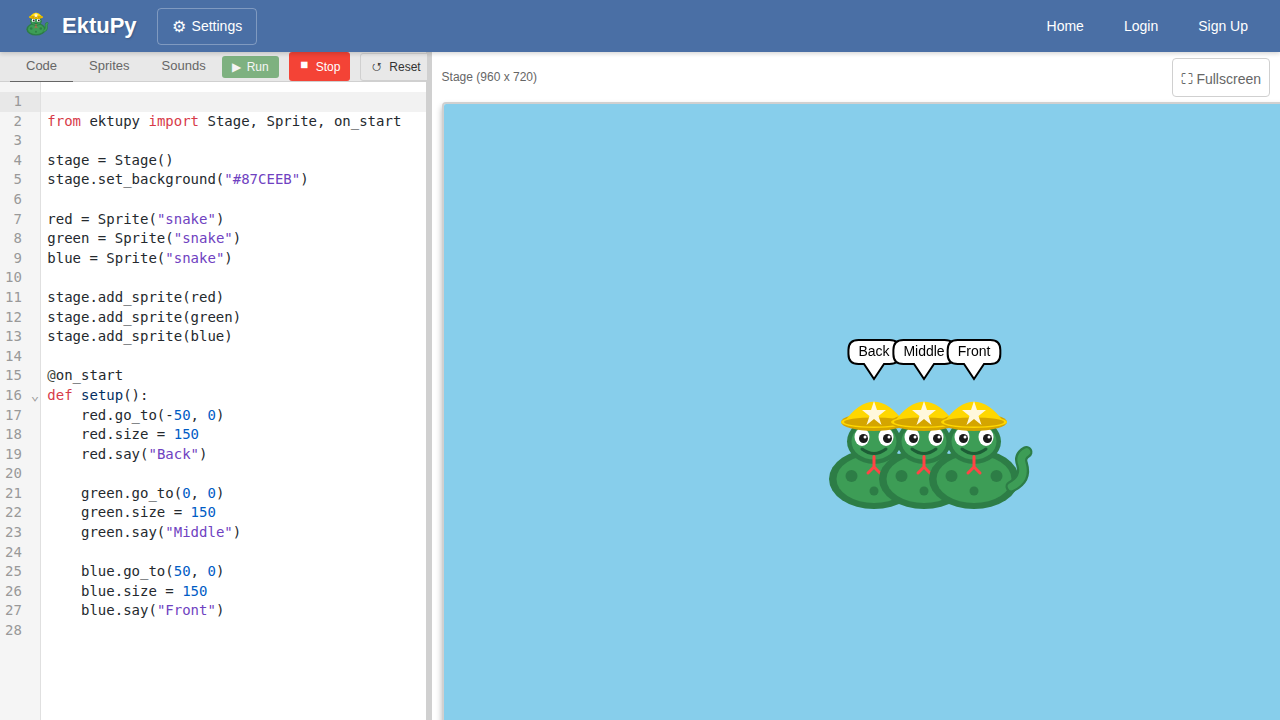
Sprite Layers
Control which sprites appear in front of others.
from ektupy import Stage, Sprite, on_start, on_key_press, wait

stage = Stage()
stage.set_background("#87CEEB")

# Create three overlapping sprites
red = Sprite("snake")
green = Sprite("snake")
blue = Sprite("snake")

stage.add_sprite(red)
stage.add_sprite(green)
stage.add_sprite(blue)

@on_start
def setup():
    # Position sprites overlapping
    red.go_to(-50, 0)
    red.size = 150

    green.go_to(0, 0)
    green.size = 150

    blue.go_to(50, 0)
    blue.size = 150

    red.say("R=front")
    green.say("G=front")
    blue.say("B=front")

@on_key_press("r")
def red_front():
    red.go_to_front_layer()
    red.say("I'm in front!")
    green.say("")
    blue.say("")

@on_key_press("g")
def green_front():
    green.go_to_front_layer()
    green.say("I'm in front!")
    red.say("")
    blue.say("")

@on_key_press("b")
def blue_front():
    blue.go_to_front_layer()
    blue.say("I'm in front!")
    red.say("")
    green.say("")

@on_key_press("space")
def reset_order():
    red.go_to_back_layer()
    green.go_forward_layers(1)
    blue.go_to_front_layer()
    red.say("Back")
    green.say("Middle")
    blue.say("Front")
Key concepts: go_to_front_layer(), go_to_back_layer(), go_forward_layers(), go_backward_layers()
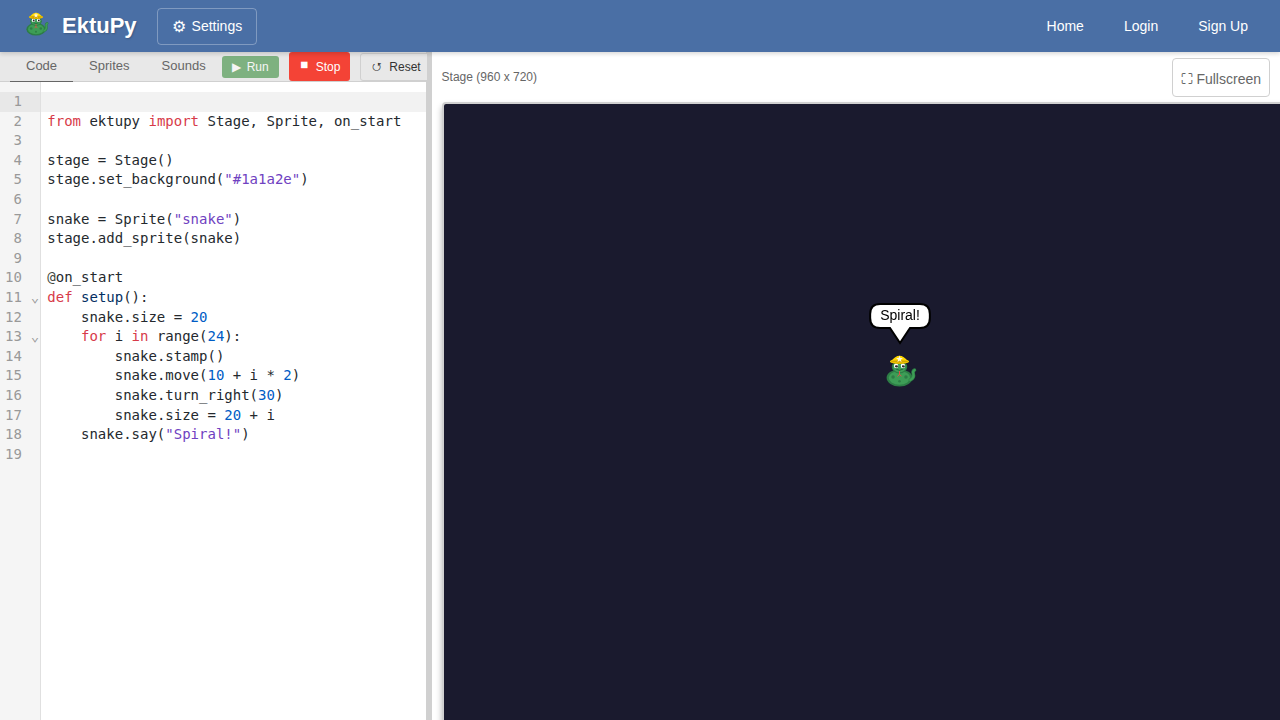
Stamping Patterns
Use stamp() to leave copies of the sprite on the stage.
from ektupy import Stage, Sprite, on_start, on_key_press

stage = Stage()
stage.set_background("#1a1a2e")

snake = Sprite("snake")
stage.add_sprite(snake)

@on_start
def setup():
    snake.go_to(0, 0)
    snake.size = 30
    snake.say("Press S=spiral G=grid C=clear", 3)

@on_key_press("s")
def draw_spiral():
    snake.go_to(0, 0)
    snake.direction = 0
    snake.size = 20

    # Draw a spiral pattern using stamps
    for i in range(36):
        snake.stamp()
        snake.move(10 + i * 2)
        snake.turn_right(30)
        snake.size = 20 + i

    snake.say("Spiral complete!")

@on_key_press("c")
def clear_stamps():
    snake.clear()
    snake.go_to(0, 0)
    snake.size = 30
    snake.say("Cleared!")

@on_key_press("g")
def draw_grid():
    snake.size = 20

    # Draw a grid pattern
    for row in range(-4, 5):
        for col in range(-6, 7):
            snake.go_to(col * 60, row * 60)
            snake.stamp()

    snake.go_to(0, 0)
    snake.say("Grid complete!")
Key concepts: stamp(), clear()
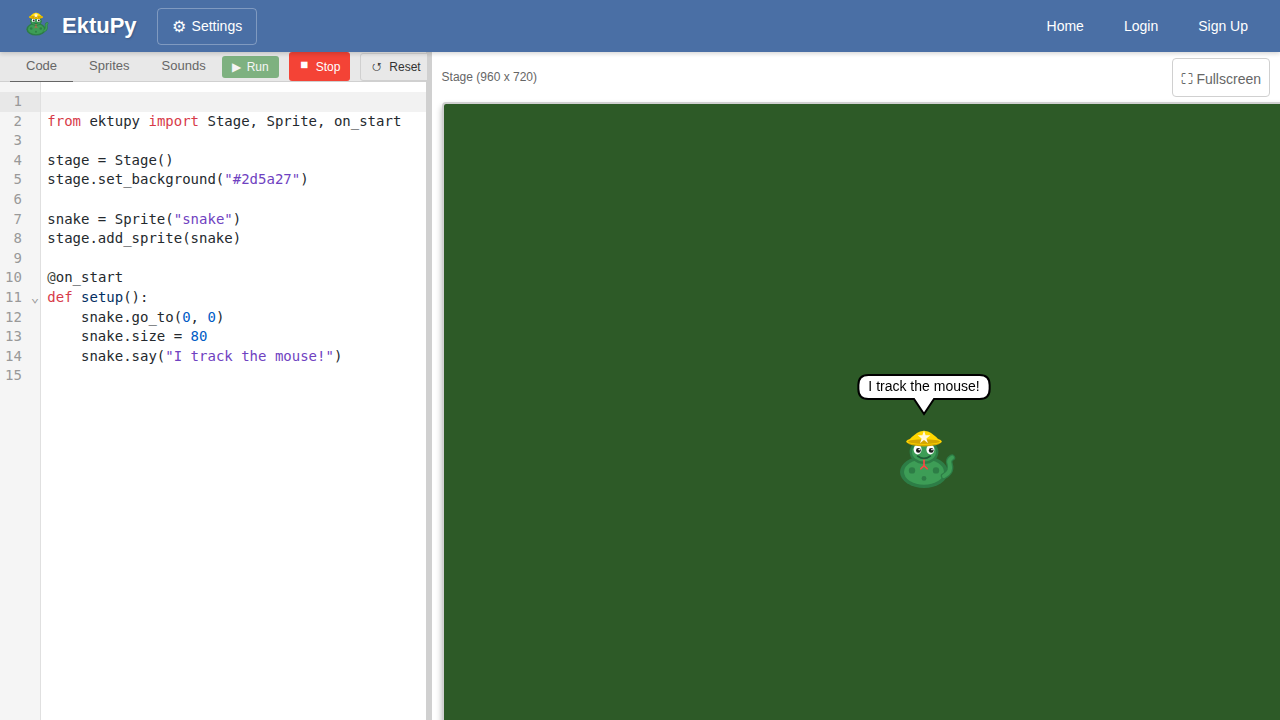
Mouse Tracking
Follow the mouse and detect proximity.
from ektupy import Stage, Sprite, on_start, on_forever
from ektupy import mouse_x, mouse_y

stage = Stage()
stage.set_background("#2d5a27")

snake = Sprite("snake")
stage.add_sprite(snake)

@snake.on_start
def setup():
    snake.go_to(0, 0)
    snake.size = 80

@snake.on_forever
def track_mouse():
    # Calculate distance to mouse
    dist = snake.distance_to_mouse()

    # Check if touching mouse pointer
    if snake.touching_mouse():
        snake.say("You caught me!")
    elif dist < 80:
        snake.say("Too close!")
    elif dist < 150:
        snake.say("Getting warmer...")
    else:
        snake.say(f"Distance: {int(dist)}")

    # Slowly move toward mouse
    snake.point_towards_mouse()
    if dist > 10:
        snake.move(2)
Key concepts: distance_to_mouse(), touching_mouse(), point_towards_mouse(), mouse_x(), mouse_y()
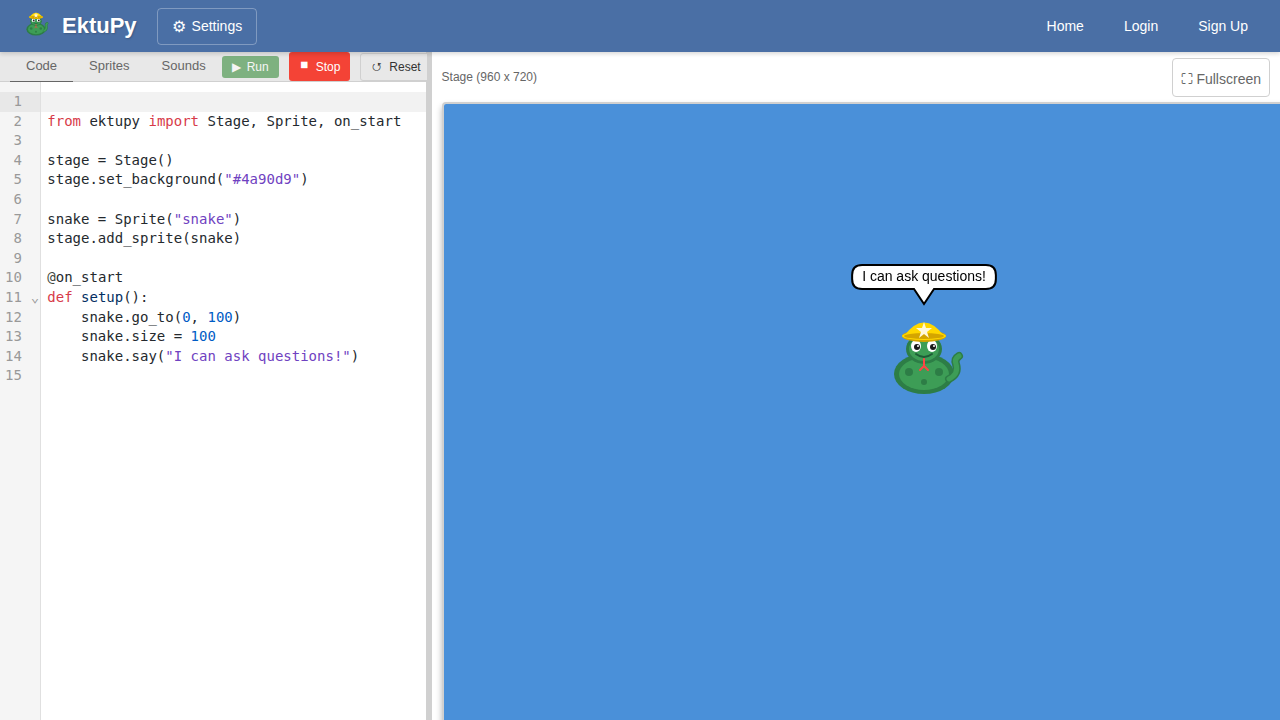
User Input (Ask and Answer)
Get text input from the user.
from ektupy import Stage, Sprite, on_start, on_key_press
from ektupy import ask, answer, wait

stage = Stage()
stage.set_background("#4a90d9")

snake = Sprite("snake")
stage.add_sprite(snake)

@snake.on_start
def greet():
    snake.go_to(0, 100)
    snake.size = 100

    # Ask for the user's name
    name = ask("What's your name?")

    # Use the answer
    snake.say(f"Hello, {name}! Nice to meet you!")
    wait(2)

    # Ask another question
    color = ask("What's your favorite color?")
    snake.say(f"{color} is a great color!")
    wait(2)

    snake.say("Press SPACE to ask again!")

@snake.on_key_press("space")
def ask_again():
    response = ask("Tell me something interesting:")
    snake.say(f'You said: "{response}"')
Key concepts: ask(), answer() - the input box appears at the bottom of the stage
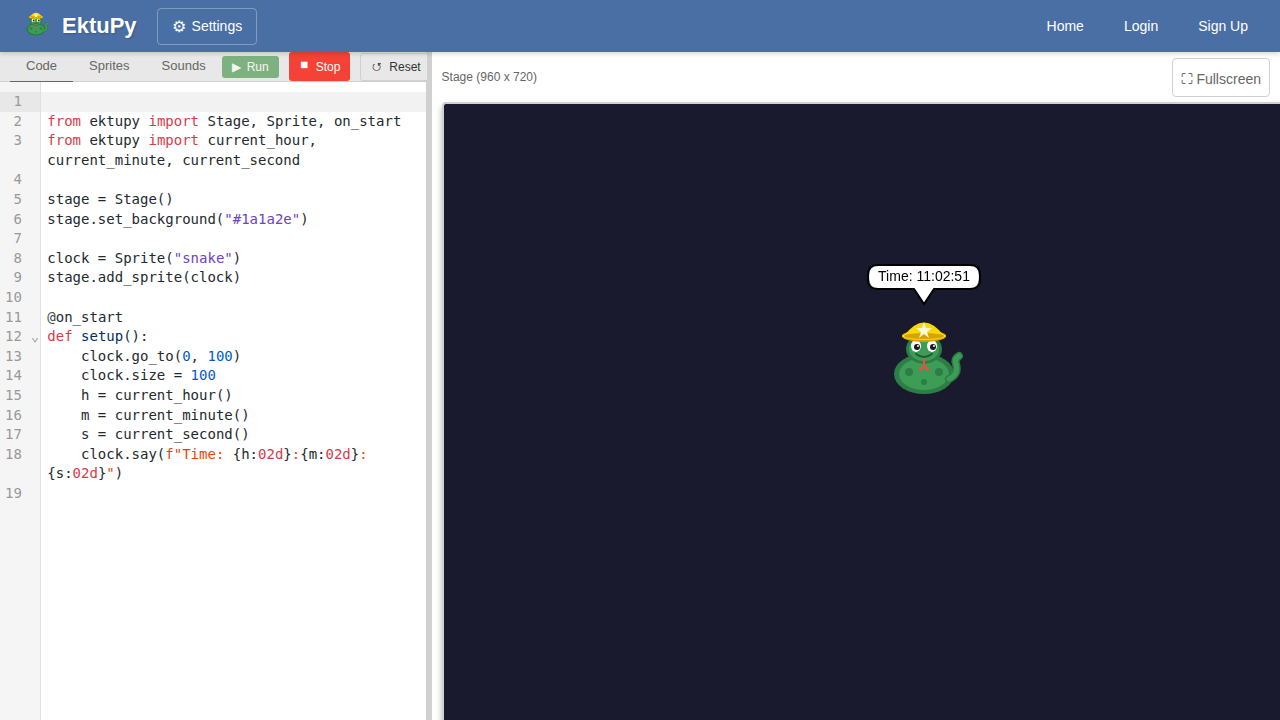
Timer and Clock
Use sensing functions for time.
from ektupy import Stage, Sprite, on_start, on_forever
from ektupy import timer, reset_timer
from ektupy import current_hour, current_minute, current_second, current_day_of_week

stage = Stage()
stage.set_background("#1a1a2e")

clock = Sprite("snake")
stage.add_sprite(clock)

days = ["", "Sunday", "Monday", "Tuesday", "Wednesday", "Thursday", "Friday", "Saturday"]

@clock.on_start
def setup():
    clock.go_to(0, 100)
    clock.size = 100
    reset_timer()

@clock.on_forever
def update_clock():
    h = current_hour()
    m = current_minute()
    s = current_second()
    day = days[current_day_of_week()]

    # Format time with leading zeros
    time_str = f"{h:02d}:{m:02d}:{s:02d}"
    elapsed = int(timer())

    clock.say(f"{day}\n{time_str}\nRunning: {elapsed}s")
Key concepts: timer(), reset_timer(), current_hour(), current_minute(), current_second(), current_day_of_week()
Two Sprites with Independent Controls
Each sprite has its own scripts and responds to different keys.
from ektupy import Stage, Sprite, wait, broadcast

stage = Stage()
stage.set_background("#87CEEB")

cat = Sprite("cat")
dog = Sprite("dog")

stage.add_sprite(cat)
stage.add_sprite(dog)

# ============================================
# CAT'S SCRIPTS - Use arrow keys to move
# ============================================

@cat.on_start
def cat_setup():
    cat.go_to(-100, 0)
    cat.say("I'm the cat! Use arrow keys to move me.")
    wait(3)
    cat.say("")

@cat.on_key_press("up arrow")
def cat_up():
    cat.change_y(10)

@cat.on_key_press("down arrow")
def cat_down():
    cat.change_y(-10)

@cat.on_key_press("left arrow")
def cat_left():
    cat.change_x(-10)

@cat.on_key_press("right arrow")
def cat_right():
    cat.change_x(10)

@cat.on_message("woof")
def cat_hears_woof():
    cat.say("Meow back!")
    wait(1)
    cat.say("")

# ============================================
# DOG'S SCRIPTS - Use WASD keys to move
# ============================================

@dog.on_start
def dog_setup():
    dog.go_to(100, 0)
    dog.say("I'm the dog! Use WASD to move me.")
    wait(3)
    dog.say("")

@dog.on_key_press("w")
def dog_up():
    dog.change_y(10)

@dog.on_key_press("s")
def dog_down():
    dog.change_y(-10)

@dog.on_key_press("a")
def dog_left():
    dog.change_x(-10)

@dog.on_key_press("d")
def dog_right():
    dog.change_x(10)

@dog.on_key_press("space")
def dog_bark():
    dog.say("Woof!")
    broadcast("woof")
    wait(1)
    dog.say("")

# ============================================
# COLLISION DETECTION
# ============================================

@cat.on_forever
def check_collision():
    if cat.touching(dog):
        cat.say("Hey!")
        dog.say("Hi friend!")
Key concepts: Per-sprite decorators (@sprite.on_start, @sprite.on_key_press, @sprite.on_message), touching(), broadcast()
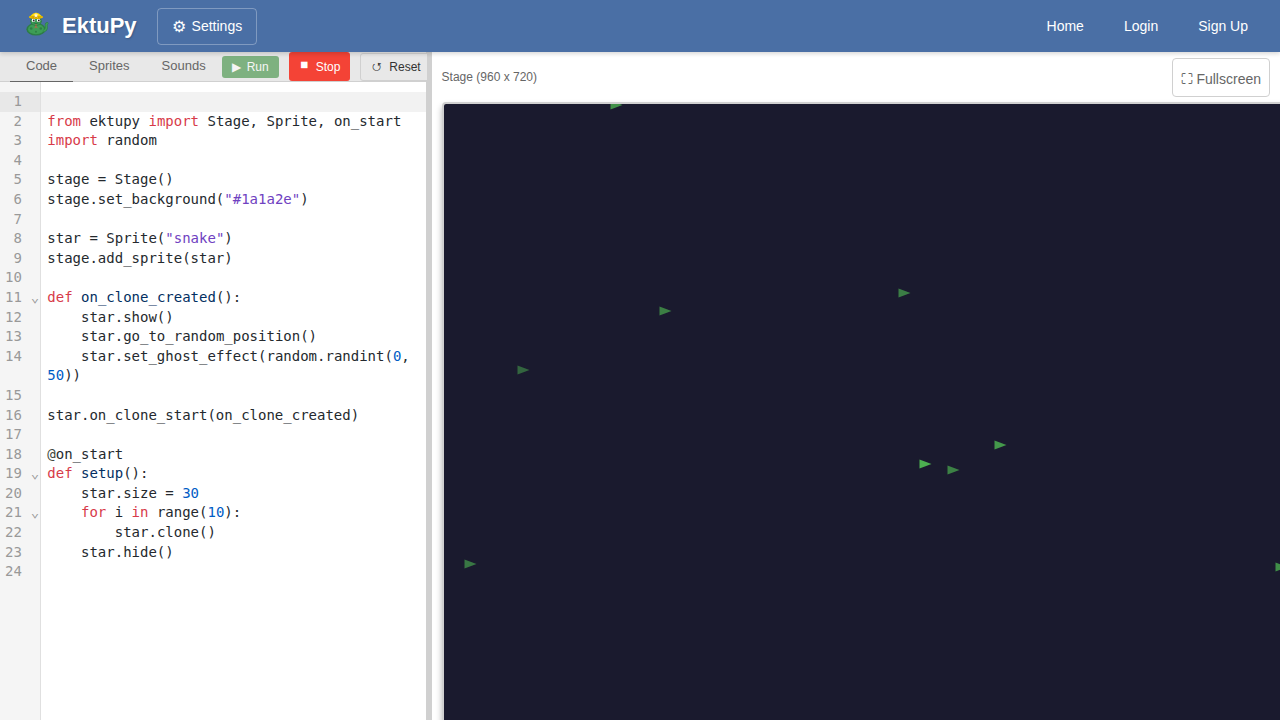
Cloning
Create multiple copies of a sprite at runtime.
from ektupy import Stage, Sprite, on_start, on_key_press
import random

stage = Stage()
stage.set_background("#1a1a2e")

star = Sprite("snake")
stage.add_sprite(star)

@star.on_start
def star_setup():
    star.hide()
    star.size = 30

def on_clone_created():
    star.show()
    star.go_to_random_position()
    star.set_ghost_effect(random.randint(0, 50))

star.on_clone_start(on_clone_created)

@on_start
def setup():
    print("Press SPACE to create stars!")

@on_key_press("space")
def create_star():
    star.clone()
    print("Created a star!")
Key concepts: clone(), on_clone_start(), is_clone, delete_clone(), go_to_random_position()
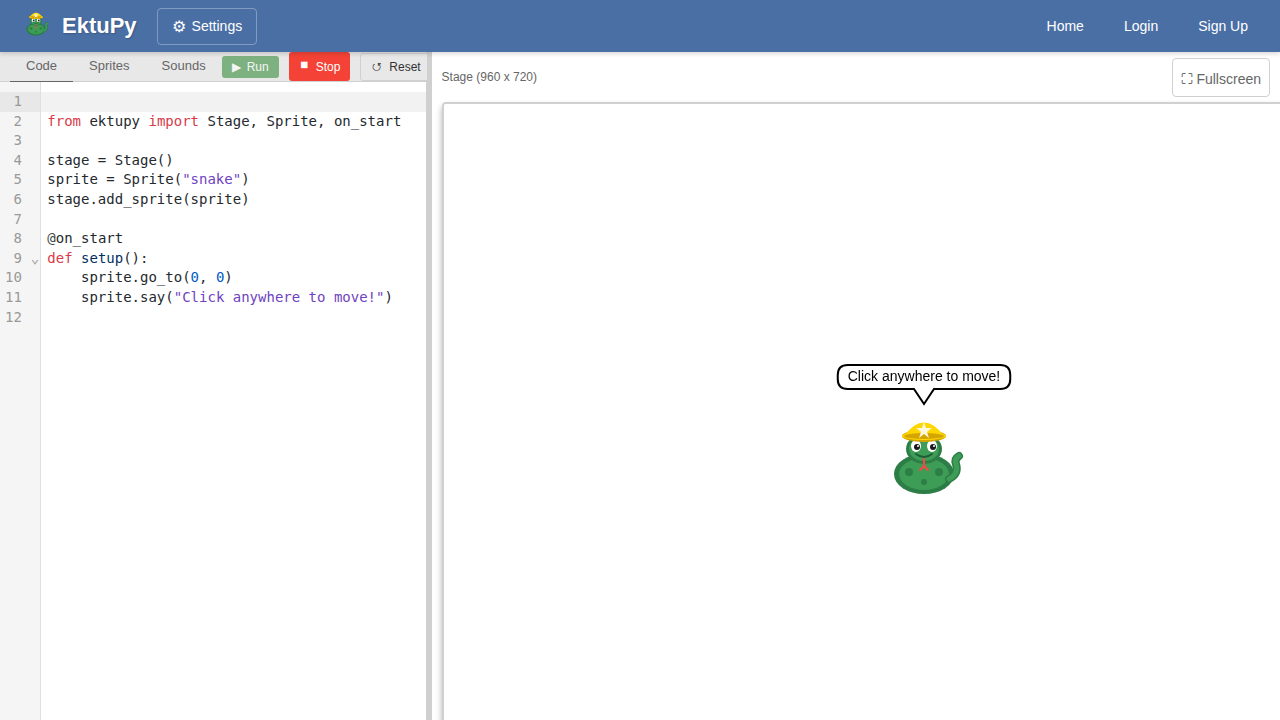
Click to Move
Click anywhere on the stage to move the sprite there smoothly.
from ektupy import Stage, Sprite, on_start, on_mouse_click

stage = Stage()
sprite = Sprite("snake")
stage.add_sprite(sprite)

@on_start
def setup():
    sprite.go_to(0, 0)
    sprite.say("Click anywhere!")

@on_mouse_click
def move_to_click(x, y):
    sprite.glide_to(x, y, 0.5)
    sprite.say(f"({int(x)}, {int(y)})")
Key concepts: @on_mouse_click, glide_to()
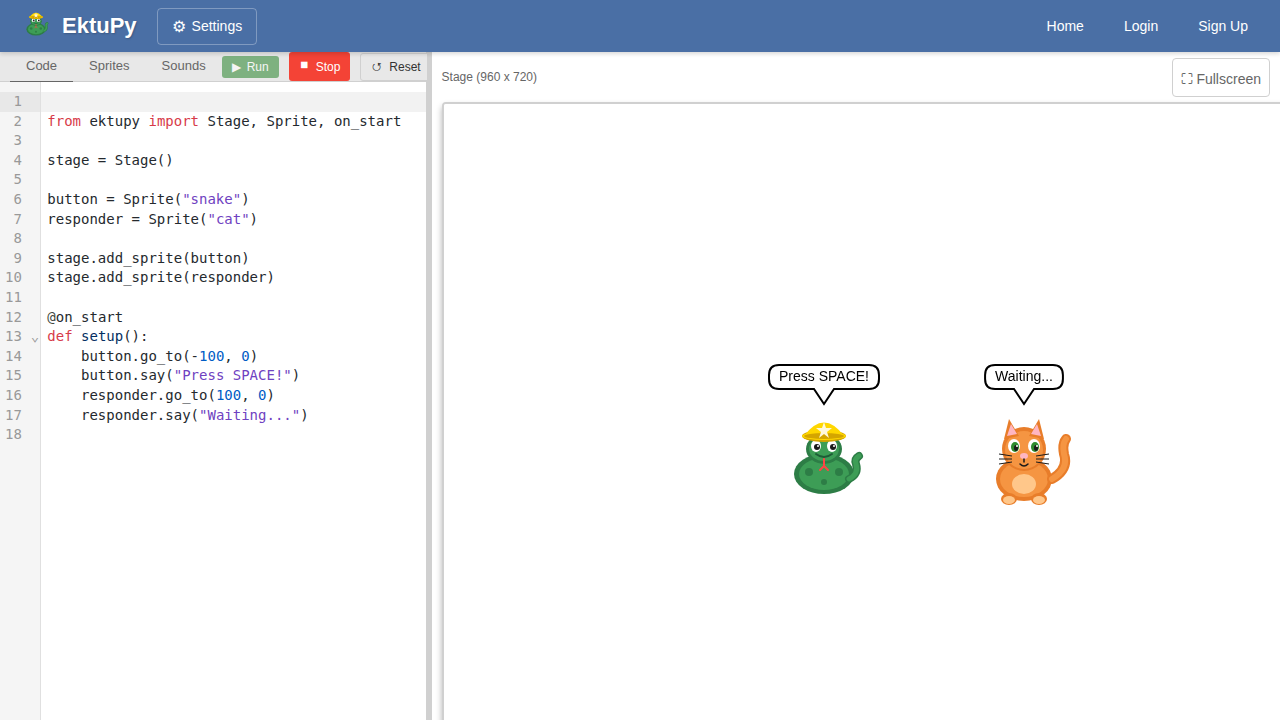
Broadcasting Messages
Use broadcasts to coordinate between sprites.
from ektupy import Stage, Sprite, on_start, on_key_press, on_message, broadcast, wait

stage = Stage()

button = Sprite("snake")
responder = Sprite("cat")

stage.add_sprite(button)
stage.add_sprite(responder)

@button.on_start
def button_setup():
    button.go_to(-100, 0)
    button.say("Press SPACE!")

@responder.on_start
def responder_setup():
    responder.go_to(100, 0)

@on_key_press("space")
def send_message():
    button.say("Sending...")
    broadcast("hello")
    wait(0.5)
    button.say("Press SPACE!")

@responder.on_message("hello")
def receive_message():
    responder.say("Got it!")
    responder.change_y(20)
    wait(0.5)
    responder.change_y(-20)
    responder.say("")
Key concepts: broadcast(), @on_message, broadcast_and_wait()
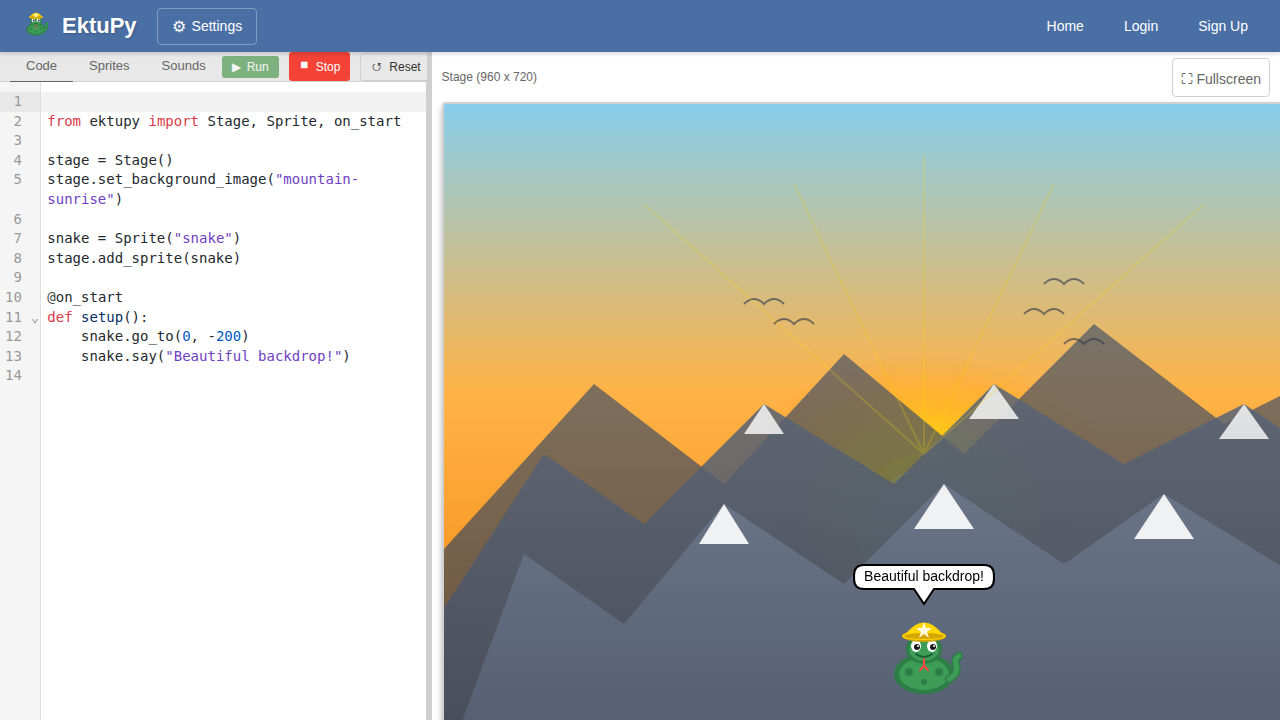
Background Images
Use backdrop images for your stage.
from ektupy import Stage, Sprite, on_start, on_forever, key_pressed

stage = Stage()
stage.set_background_image("mountain-sunrise")

snake = Sprite("snake")
stage.add_sprite(snake)

# Available backdrops: mountain-sunrise, jungle, paddy-field, race-track, sky-and-clouds
backdrops = ["mountain-sunrise", "jungle", "paddy-field", "race-track", "sky-and-clouds"]
current_backdrop = 0

@on_start
def setup():
    snake.go_to(0, -200)
    snake.say("Press SPACE to change backdrop!", 3)

@on_forever
def game_loop():
    global current_backdrop

    # Move with arrow keys
    if key_pressed("right arrow"):
        snake.direction = 90
        snake.move(5)
    if key_pressed("left arrow"):
        snake.direction = -90
        snake.move(5)
    if key_pressed("up arrow"):
        snake.direction = 0
        snake.move(5)
    if key_pressed("down arrow"):
        snake.direction = 180
        snake.move(5)

    # Change backdrop with space
    if key_pressed("space"):
        current_backdrop = (current_backdrop + 1) % len(backdrops)
        stage.set_background_image(backdrops[current_backdrop])
        snake.say(backdrops[current_backdrop], 1)
Key concepts: set_background_image(), available backdrops: jungle, mountain-sunrise, paddy-field, race-track, sky-and-clouds
EktuPy Examples
This page contains example programs demonstrating EktuPy features. Each example includes a code walkthrough explaining the key concepts.
Hello World
The simplest EktuPy program - display a sprite with a speech bubble.
What you’ll learn:
- Creating a stage and sprite
- Using the
@on_startdecorator - Basic sprite positioning and speech bubbles
View Code
# Hello Snake - Simple greeting example

from ektupy import Stage, Sprite, on_start

stage = Stage()
stage.set_background("#2d5a27")

snake = Sprite("snake")
stage.add_sprite(snake)

@on_start
def setup():
    snake.go_to(0, 0)
    snake.say("Hello, I'm Py the Snake!", 5)
Code Breakdown
Imports and Setup
from ektupy import Stage, Sprite, on_start
Import the core classes and the @on_start decorator.
Stage Creation
stage = Stage()
stage.set_background("#2d5a27")  # Dark green color
Create a 960x720 pixel stage with a custom background color using CSS hex notation.
Sprite Creation
snake = Sprite("snake")
stage.add_sprite(snake)
Create a sprite using the asset name “snake” and add it to the stage. The sprite won’t be visible until added.
Event Handler
@on_start
def setup():
    snake.go_to(0, 0)
    snake.say("Hello, I'm Py the Snake!", 5)
The @on_start decorator runs this function once when the program starts. say() displays a speech bubble for 5 seconds.
Arrow Key Movement
Move a sprite around the stage using arrow keys.
What you’ll learn:
- Using
@on_foreverfor continuous checking - Reading keyboard input with
key_pressed() - Sprite direction and movement
- Edge bouncing
View Code
# Arrow Key Movement Example
# Use arrow keys to move the snake

from ektupy import Stage, Sprite, on_start, on_forever, key_pressed

stage = Stage()
snake = Sprite("snake")
stage.add_sprite(snake)

speed = 5

@on_start
def setup():
    snake.go_to(0, 0)
    snake.say("Use arrow keys to move!", 3)

@on_forever
def game_loop():
    if key_pressed("right arrow"):
        snake.direction = 90
        snake.move(speed)
    if key_pressed("left arrow"):
        snake.direction = -90
        snake.move(speed)
    if key_pressed("up arrow"):
        snake.direction = 0
        snake.move(speed)
    if key_pressed("down arrow"):
        snake.direction = 180
        snake.move(speed)

    snake.bounce_if_on_edge()
Code Breakdown
Game Variables
speed = 5
Store movement speed in a variable for easy adjustment.
The Forever Loop
@on_forever
def game_loop():
This function runs every frame (~60 times per second), perfect for checking continuous input.
Key Checking
if key_pressed("right arrow"):
    snake.direction = 90    # Point right (90 degrees)
    snake.move(speed)       # Move forward
key_pressed() returns True while a key is held. Direction uses Scratch-style angles: 0=up, 90=right, 180=down, -90=left.
Boundary Handling
snake.bounce_if_on_edge()
Prevents the sprite from leaving the stage by reversing direction at edges.
Bouncing Ball
A sprite that bounces around the stage continuously.
What you’ll learn:
- Random initial direction
- Continuous movement with bouncing
- Using Python’s
randommodule
View Code
# Bouncing Ball Example
# Watch the snake bounce around the stage

from ektupy import Stage, Sprite, on_start, on_forever
import random

stage = Stage()
stage.set_background("#1a1a2e")

snake = Sprite("snake")
stage.add_sprite(snake)

speed = 8

@on_start
def setup():
    snake.go_to(0, 0)
    snake.direction = random.randint(30, 60)
    snake.say("Wheee!", 2)

@on_forever
def game_loop():
    snake.move(speed)
    snake.bounce_if_on_edge()
Code Breakdown
Random Direction
import random
snake.direction = random.randint(30, 60)
Python’s standard library works in EktuPy! Set a random diagonal direction at startup.
Continuous Motion
@on_forever
def game_loop():
    snake.move(speed)
    snake.bounce_if_on_edge()
The sprite moves forward continuously and bounces off walls automatically.
Drawing with Pen
Use the pen to draw on the stage as the sprite moves.
What you’ll learn:
- Pen down/up for drawing
- Pen color and size
- Following mouse position
- Clearing drawings
View Code
# Drawing with Pen Example
# Click and drag to draw, press 'c' to clear

from ektupy import Stage, Sprite, on_start, on_forever
from ektupy import mouse_x, mouse_y, mouse_down, key_pressed

stage = Stage()
pen = Sprite("snake")
pen.size = 30
stage.add_sprite(pen)

@on_start
def setup():
    pen.pen_up()
    pen.set_pen_color("#00ff00")
    pen.set_pen_size(3)
    pen.say("Click to draw, 'c' to clear", 3)

@on_forever
def draw():
    pen.go_to(mouse_x(), mouse_y())

    if mouse_down():
        pen.pen_down()
    else:
        pen.pen_up()

    # Press 'c' to clear
    if key_pressed("c"):
        pen.clear()

    # Color keys
    if key_pressed("1"):
        pen.set_pen_color("#ff0000")  # Red
    if key_pressed("2"):
        pen.set_pen_color("#00ff00")  # Green
    if key_pressed("3"):
        pen.set_pen_color("#0000ff")  # Blue
Code Breakdown
Pen Setup
pen.pen_up()                    # Start with pen up
pen.set_pen_color("#00ff00")    # Green color
pen.set_pen_size(3)             # 3 pixel line width
Configure pen before drawing. Use CSS colors (hex, rgb, or named).
Mouse Tracking
pen.go_to(mouse_x(), mouse_y())
Move sprite to current mouse position every frame.
Drawing Logic
if mouse_down():
    pen.pen_down()
else:
    pen.pen_up()
Only draw when mouse button is pressed.
Color Switching
if key_pressed("1"):
    pen.set_pen_color("#ff0000")
Change colors with number keys for variety.
Two Sprites
Each sprite can have its own scripts, just like in Scratch!
What you’ll learn:
- Per-sprite event decorators (
@sprite.on_start,@sprite.on_key_press) - Multiple sprites with independent controls
- Collision detection
- Broadcasting messages between sprites
View Code
# Two Sprites Example - Cat and Dog
# This shows how each sprite can have its own scripts, just like Scratch!

# Create the stage
stage = Stage()
stage.set_background("#87CEEB")  # Sky blue background

# Create our two sprites
cat = Sprite("cat")
dog = Sprite("dog")

# Add sprites to the stage
stage.add_sprite(cat)
stage.add_sprite(dog)

# ============================================
# CAT'S SCRIPTS - Use arrow keys to move
# ============================================

@cat.on_start
def cat_setup():
    cat.go_to(-100, 0)
    cat.say("I'm the cat! Use arrow keys to move me.")
    wait(3)
    cat.say("")

@cat.on_key_press("up arrow")
def cat_up():
    cat.change_y(10)

@cat.on_key_press("down arrow")
def cat_down():
    cat.change_y(-10)

@cat.on_key_press("left arrow")
def cat_left():
    cat.change_x(-10)

@cat.on_key_press("right arrow")
def cat_right():
    cat.change_x(10)

@cat.on_message("woof")
def cat_hears_woof():
    cat.say("Meow back!")
    wait(1)
    cat.say("")

# ============================================
# DOG'S SCRIPTS - Use WASD keys to move
# ============================================

@dog.on_start
def dog_setup():
    dog.go_to(100, 0)
    dog.say("I'm the dog! Use WASD to move me.")
    wait(3)
    dog.say("")

@dog.on_key_press("w")
def dog_up():
    dog.change_y(10)

@dog.on_key_press("s")
def dog_down():
    dog.change_y(-10)

@dog.on_key_press("a")
def dog_left():
    dog.change_x(-10)

@dog.on_key_press("d")
def dog_right():
    dog.change_x(10)

@dog.on_key_press("space")
def dog_bark():
    dog.say("Woof!")
    broadcast("woof")
    wait(1)
    dog.say("")

# ============================================
# COLLISION DETECTION - Check if they touch
# ============================================

@cat.on_forever
def check_collision():
    if cat.touching(dog):
        cat.say("Hey!")
        dog.say("Hi friend!")
Code Breakdown
Per-Sprite Decorators
@cat.on_start       # Only for cat
@dog.on_key_press("w")  # Only for dog
Each sprite has its own event handlers, keeping code organized.
Different Control Schemes
- Cat uses arrow keys
- Dog uses WASD keys Both can move simultaneously!
Message Broadcasting
broadcast("woof")           # Dog sends message

@cat.on_message("woof")     # Cat receives it
def cat_hears_woof():
    cat.say("Meow back!")
Sprites can communicate through broadcast messages.
Collision Detection
if cat.touching(dog):
    cat.say("Hey!")
Check if two sprites are overlapping using bounding box collision.
Many Sprites
Click on sprites to select them, then move with arrow keys.
What you’ll learn:
- Managing multiple sprites
- Click handlers with
on_clicked() - Global state for selection
- Dynamic behavior based on selection
View Code
# Many Sprites Example
# Click on a sprite to select it, then use arrow keys to move it!

from ektupy import Stage, Sprite, on_start, on_key_press
import random

stage = Stage()
stage.set_background("#1a1a2e")

# Create all the sprites
lion = Sprite("lion")
fish = Sprite("fish")
cat = Sprite("cat")
shark = Sprite("shark")
snake = Sprite("snake")

# Add them to the stage
stage.add_sprite(lion)
stage.add_sprite(fish)
stage.add_sprite(cat)
stage.add_sprite(shark)
stage.add_sprite(snake)

# Track which sprite is selected
selected_sprite = None

def select_sprite(sprite, name):
    """Select a sprite and make it say its name."""
    global selected_sprite
    selected_sprite = sprite

    # Clear speech from all sprites
    lion.say("")
    fish.say("")
    cat.say("")
    shark.say("")
    snake.say("")

    # Selected sprite says its name
    sprite.say(f"I'm {name}!")

@on_start
def setup():
    # Place sprites at random positions
    for sprite in [lion, fish, cat, shark, snake]:
        x = random.randint(-350, 350)
        y = random.randint(-250, 250)
        sprite.go_to(x, y)
        sprite.size = 80

    print("Click on a sprite to select it!")
    print("Use arrow keys to move the selected sprite.")

# Click handlers for each sprite
def click_lion():
    select_sprite(lion, "Lion")

def click_fish():
    select_sprite(fish, "Fish")

def click_cat():
    select_sprite(cat, "Cat")

def click_shark():
    select_sprite(shark, "Shark")

def click_snake():
    select_sprite(snake, "Snake")

# Register click handlers
lion.on_clicked(click_lion)
fish.on_clicked(click_fish)
cat.on_clicked(click_cat)
shark.on_clicked(click_shark)
snake.on_clicked(click_snake)

# Arrow key movement
@on_key_press("up arrow")
def move_up():
    if selected_sprite:
        selected_sprite.change_y(20)

@on_key_press("down arrow")
def move_down():
    if selected_sprite:
        selected_sprite.change_y(-20)

@on_key_press("left arrow")
def move_left():
    if selected_sprite:
        selected_sprite.change_x(-20)

@on_key_press("right arrow")
def move_right():
    if selected_sprite:
        selected_sprite.change_x(20)
Code Breakdown
Click Handler Registration
lion.on_clicked(click_lion)
Register a callback function to run when this sprite is clicked.
Selection State
selected_sprite = None

def select_sprite(sprite, name):
    global selected_sprite
    selected_sprite = sprite
Use a global variable to track the currently selected sprite.
Conditional Movement
if selected_sprite:
    selected_sprite.change_y(20)
Only move if a sprite is selected (not None).
Costume Animation
Watch the snake change costumes as it moves!
What you’ll learn:
- Costume system
- Frame-based animation timing
- Accessing costume properties
View Code
# Costume Animation Example
# Watch the snake change colors as it moves!

from ektupy import Stage, Sprite, on_start, on_forever

stage = Stage()
stage.set_background("#2d3436")

# Create a snake sprite - automatically loads all costumes
snake = Sprite("snake")
stage.add_sprite(snake)

frame_count = 0

@on_start
def setup():
    snake.go_to(0, 0)
    snake.set_size(150)
    # Show available costumes
    print("Available costumes:", snake.costumes)
    snake.say("I can change colors!", 2)

@on_forever
def animate():
    global frame_count
    frame_count += 1

    # Move in a circle
    snake.turn_right(3)
    snake.move(5)

    # Change costume every 20 frames
    if frame_count % 20 == 0:
        snake.next_costume()
        print(f"Now wearing: {snake.costume_name}")
Code Breakdown
Costume Access
print("Available costumes:", snake.costumes)
Sprites can have multiple costumes. Access the list via the costumes property.
Frame Counting
frame_count += 1
if frame_count % 20 == 0:
    snake.next_costume()
Use modulo (%) to trigger actions periodically. At 60fps, % 20 triggers ~3 times per second.
Costume Properties
snake.costume_name   # Current costume name
snake.costume_number # Current costume index
Mouse Tracker
A sprite that follows and reacts to the mouse.
What you’ll learn:
- Distance calculations
- Mouse sensing
- Point-towards behavior
- Conditional responses based on distance
View Code
# Mouse Tracker - Sensing Mouse Position
# Demonstrates distance_to_mouse and touching_mouse

from ektupy import Stage, Sprite, on_start, on_forever
from ektupy import mouse_x, mouse_y

stage = Stage()
stage.set_background("#2d5a27")

snake = Sprite("snake")
stage.add_sprite(snake)

@snake.on_start
def setup():
    snake.go_to(0, 0)
    snake.size = 80

@snake.on_forever
def track_mouse():
    # Calculate distance to mouse
    dist = snake.distance_to_mouse()

    # Check if touching mouse pointer
    if snake.touching_mouse():
        snake.say("You caught me!")
    elif dist < 80:
        snake.say("Too close!")
    elif dist < 150:
        snake.say("Getting warmer...")
    else:
        snake.say(f"Distance: {int(dist)}")

    # Slowly move toward mouse
    snake.point_towards_mouse()
    if dist > 10:
        snake.move(2)
Code Breakdown
Distance Sensing
dist = snake.distance_to_mouse()
Get the pixel distance between sprite center and mouse position.
Conditional Responses
if snake.touching_mouse():
    snake.say("You caught me!")
elif dist < 80:
    snake.say("Too close!")
Create zones of different behavior based on distance.
Following Behavior
snake.point_towards_mouse()
if dist > 10:
    snake.move(2)
Point toward mouse and move only if not already there (prevents jittering).
Ask Name
Get user input through an on-screen text box.
What you’ll learn:
- Using
ask()for user input - Working with the returned answer
- Sequential prompts
View Code
# Ask Your Name - User Input Example
# Demonstrates the ask() and answer() functions

from ektupy import Stage, Sprite, on_start, on_key_press
from ektupy import ask, answer, wait

stage = Stage()
stage.set_background("#4a90d9")

snake = Sprite("snake")
stage.add_sprite(snake)

@snake.on_start
def greet():
    snake.go_to(0, 100)
    snake.size = 100

    # Ask for the user's name
    name = ask("What's your name?")

    # Use the answer
    snake.say(f"Hello, {name}! Nice to meet you!")
    wait(2)

    # Ask another question
    color = ask("What's your favorite color?")
    snake.say(f"{color} is a great color!")
    wait(2)

    snake.say("Press SPACE to ask again!")

@snake.on_key_press("space")
def ask_again():
    response = ask("Tell me something interesting:")
    snake.say(f'You said: "{response}"')
Code Breakdown
Getting Input
name = ask("What's your name?")
Shows an input box at the bottom of the stage. Program pauses until user submits.
Using the Answer
snake.say(f"Hello, {name}!")
The returned value is a string you can use immediately.
Multiple Questions
name = ask("What's your name?")
color = ask("What's your favorite color?")
Each ask() waits for its own response before continuing.
Digital Clock
Display the current time and date using sensing functions.
What you’ll learn:
- Date/time functions
- Timer functions
- String formatting
- Creating a live display
View Code
# Digital Clock - Sensing Time Example
# Demonstrates timer and date/time functions

from ektupy import Stage, Sprite, on_start, on_forever
from ektupy import timer, reset_timer
from ektupy import current_hour, current_minute, current_second, current_day_of_week

stage = Stage()
stage.set_background("#1a1a2e")

clock = Sprite("snake")
stage.add_sprite(clock)

days = ["", "Sunday", "Monday", "Tuesday", "Wednesday", "Thursday", "Friday", "Saturday"]

@clock.on_start
def setup():
    clock.go_to(0, 100)
    clock.size = 100
    reset_timer()

@clock.on_forever
def update_clock():
    h = current_hour()
    m = current_minute()
    s = current_second()
    day = days[current_day_of_week()]

    # Format time with leading zeros
    time_str = f"{h:02d}:{m:02d}:{s:02d}"
    elapsed = int(timer())

    clock.say(f"{day}\n{time_str}\nRunning: {elapsed}s")
Code Breakdown
Time Functions
h = current_hour()      # 0-23
m = current_minute()    # 0-59
s = current_second()    # 0-59
Get current time from the user’s system.
Day of Week
days = ["", "Sunday", "Monday", ...]
day = days[current_day_of_week()]  # 1=Sunday
Convert numeric day (1-7) to a name using a lookup list.
String Formatting
f"{h:02d}:{m:02d}:{s:02d}" # "09:05:03"
Python f-strings with format specifiers for leading zeros.
Timer
reset_timer()           # Start at 0
elapsed = int(timer())  # Seconds since reset
Track time elapsed since program started.
Background Images
Use backdrop images and cycle through them.
What you’ll learn:
- Setting background images
- Discovering available assets
- Cycling through options
View Code
# Background Image Example
# Demonstrates using backdrop images with sprites

from ektupy import Stage, Sprite, on_start, on_forever, key_pressed
from ektupy import get_available_backdrops

stage = Stage()
stage.set_background_image("mountain-sunrise")

snake = Sprite("snake")
stage.add_sprite(snake)

# Track current backdrop index
backdrops = ["mountain-sunrise", "jungle", "paddy-field", "sky-and-clouds"]
current_backdrop = 0

@on_start
def setup():
    snake.go_to(0, -200)
    snake.say("Press SPACE to change backdrop!", 3)
    print("Available backdrops:", get_available_backdrops())

@on_forever
def game_loop():
    global current_backdrop

    # Move with arrow keys
    if key_pressed("right arrow"):
        snake.direction = 90
        snake.move(5)
    if key_pressed("left arrow"):
        snake.direction = -90
        snake.move(5)
    if key_pressed("up arrow"):
        snake.direction = 0
        snake.move(5)
    if key_pressed("down arrow"):
        snake.direction = 180
        snake.move(5)

    # Change backdrop with space
    if key_pressed("space"):
        current_backdrop = (current_backdrop + 1) % len(backdrops)
        stage.set_background_image(backdrops[current_backdrop])
        snake.say(backdrops[current_backdrop], 1)
Code Breakdown
Setting Background Image
stage.set_background_image("mountain-sunrise")
Use asset names for backgrounds, just like sprites.
Asset Discovery
print("Available backdrops:", get_available_backdrops())
Runtime function to list available backdrop names.
Cycling with Modulo
current_backdrop = (current_backdrop + 1) % len(backdrops)
Wrap around to 0 when reaching the end of the list.
Pong Game
A complete two-player Pong game with sound effects.
What you’ll learn:
- Game state management
- Two-player controls
- Ball physics with bouncing
- Score tracking
- Sound effects
View Code
# Pong Game Example
# Classic two-player Pong game
# Player 1 (Left): W/S keys
# Player 2 (Right): Up/Down arrow keys
# Press SPACE to start/restart the ball

# Game variables (scaled for 960x720 stage)
ball_speed_x = 0
ball_speed_y = 0
paddle_speed = 10
score1 = 0
score2 = 0
ball_moving = False

# Create the stage with dark background
stage = Stage()
stage.set_background("#1a1a2e")

# Load sound effects
hit_sound = load_sound("sfx_sound_neutral1")
score_sound = load_sound("sfx_sound_neutral5")

# Create sprites
paddle1 = Sprite("paddle")
paddle2 = Sprite("paddle")
ball = Sprite("ball")

# Add sprites to stage
stage.add_sprite(paddle1)
stage.add_sprite(paddle2)
stage.add_sprite(ball)

@on_start
def setup():
    global ball_speed_x, ball_speed_y, score1, score2, ball_moving

    # Position paddles on left and right sides
    paddle1.go_to(-440, 0)
    paddle2.go_to(440, 0)

    # Center the ball
    ball.go_to(0, 0)
    ball.size = 80

    # Reset scores and ball state
    score1 = 0
    score2 = 0
    ball_speed_x = 0
    ball_speed_y = 0
    ball_moving = False

    # Show instructions
    ball.say("Press SPACE to start!")

@on_key_press("space")
def start_ball():
    global ball_speed_x, ball_speed_y, ball_moving

    if not ball_moving:
        ball_speed_x = 6
        ball_speed_y = 4
        ball_moving = True
        ball.say("")

@on_forever
def game_loop():
    global ball_speed_x, ball_speed_y, score1, score2, ball_moving

    # Player 1 controls (W/S)
    if key_pressed("w"):
        if paddle1.y < 280:
            paddle1.change_y(paddle_speed)
    if key_pressed("s"):
        if paddle1.y > -280:
            paddle1.change_y(-paddle_speed)

    # Player 2 controls (Up/Down arrows)
    if key_pressed("up arrow"):
        if paddle2.y < 280:
            paddle2.change_y(paddle_speed)
    if key_pressed("down arrow"):
        if paddle2.y > -280:
            paddle2.change_y(-paddle_speed)

    # Only move ball if game is active
    if not ball_moving:
        return

    # Move the ball
    ball.change_x(ball_speed_x)
    ball.change_y(ball_speed_y)

    # Ball bounces off top and bottom walls
    if ball.y > 330 or ball.y < -330:
        ball_speed_y = -ball_speed_y

    # Ball bounces off paddles
    if ball.touching(paddle1) and ball_speed_x < 0:
        ball_speed_x = -ball_speed_x
        ball_speed_y += (ball.y - paddle1.y) * 0.1
        start_sound(hit_sound)

    if ball.touching(paddle2) and ball_speed_x > 0:
        ball_speed_x = -ball_speed_x
        ball_speed_y += (ball.y - paddle2.y) * 0.1
        start_sound(hit_sound)

    # Limit vertical speed
    if ball_speed_y > 16:
        ball_speed_y = 16
    if ball_speed_y < -16:
        ball_speed_y = -16

    # Score when ball goes past paddles
    if ball.x < -480:
        score2 += 1
        reset_ball()

    if ball.x > 480:
        score1 += 1
        reset_ball()

def reset_ball():
    global ball_speed_x, ball_speed_y, ball_moving

    start_sound(score_sound)
    ball.go_to(0, 0)
    ball_speed_x = 0
    ball_speed_y = 0
    ball_moving = False
    ball.say(f"{score1} - {score2}  Press SPACE")
Code Breakdown
Game State
ball_speed_x = 0
ball_speed_y = 0
ball_moving = False
score1 = 0
score2 = 0
Track all game state in global variables.
Sound Effects
hit_sound = load_sound("sfx_sound_neutral1")
start_sound(hit_sound)  # Play when ball hits paddle
Load sounds with asset names, use the returned Sound object to play them.
Paddle Movement with Bounds
if key_pressed("w"):
    if paddle1.y < 280:  # Don't go off top
        paddle1.change_y(paddle_speed)
Check bounds before moving to keep paddles on screen.
Ball Physics
# Bounce off walls
if ball.y > 330 or ball.y < -330:
    ball_speed_y = -ball_speed_y

# Bounce off paddle with angle
if ball.touching(paddle1) and ball_speed_x < 0:
    ball_speed_x = -ball_speed_x
    ball_speed_y += (ball.y - paddle1.y) * 0.1  # Add spin
Simple physics with direction reversal and spin based on hit position.
Scoring
if ball.x < -480:
    score2 += 1
    reset_ball()
Check if ball passes paddles to award points.
Racing Game
Avoid traffic in this endless racing game.
What you’ll learn:
- Object pooling for traffic
- Lane-based movement
- Collision detection
- Background music with looping
- Progressive difficulty
View Code
"""
Racing Down - Avoid the Traffic!

Use LEFT and RIGHT arrow keys to move your red car
Avoid the oncoming traffic. Don't crash!
Press SPACE to restart after game over
"""
from ektupy import (
    Stage, Sprite, on_start, on_forever, on_key_press,
    load_sound, start_sound, set_sound_loop, set_sound_volume
)
import random

# Create stage with race track background
stage = Stage()
stage.set_background_image("race-track")

# Player's red car
player = Sprite("car")
player.switch_costume("red")
player.size = 80
stage.add_sprite(player)

# Traffic vehicles pool
traffic_types = [
    ("car", "blue", 70),
    ("car", "green", 70),
    ("car", "default", 70),
    ("truck", "yellow", 80),
    ("truck", "default", 80),
]
traffic = []

# Create pool of traffic vehicles
for i in range(6):
    sprite_name, costume_name, size = traffic_types[i % 3]
    car = Sprite(sprite_name)
    car.switch_costume(costume_name)
    car.size = size
    car.hide()
    stage.add_sprite(car)
    traffic.append(car)

# Lane positions (x coordinates for 3 lanes)
LANES = [-130, 0, 130]

# Game state
game_over = False
score = 0
speed = 5

# Load sounds
crash_sound = load_sound("sfx_damage_hit1")
music_sound = load_sound("boss_battle")


@on_start
def setup():
    global game_over, score, speed
    game_over = False
    score = 0
    speed = 5

    player.go_to(0, -280)
    player.show()

    for car in traffic:
        car.hide()
        car.go_to(0, 500)

    # Start background music
    set_sound_loop(music_sound, True)
    set_sound_volume(music_sound, 30)
    start_sound(music_sound)


def spawn_traffic():
    for car in traffic:
        if not car.visible:
            lane = random.choice(LANES)
            car.go_to(lane, 400)
            car.show()
            return


def check_collision(car):
    px, py = player.x, player.y
    cx, cy = car.x, car.y
    player_w, player_h = 30, 50
    car_w, car_h = 30, 50

    if abs(px - cx) < (player_w + car_w) / 2:
        if abs(py - cy) < (player_h + car_h) / 2:
            return True
    return False


@on_forever
def game_loop():
    global game_over, score, speed

    if game_over:
        return

    for car in traffic:
        if car.visible:
            car.change_y(-speed)

            if check_collision(car):
                game_over = True
                start_sound(crash_sound)
                player.say("GAME OVER!")
                return

            if car.y < -400:
                car.hide()
                score += 1

    # Spawn new traffic (max 3 at a time)
    if count_active_traffic() < 3:
        if random.random() < 0.03:
            spawn_traffic()

    # Gradually increase speed
    if score > 0 and score % 10 == 0:
        speed = min(12, 5 + score // 10)


@on_key_press("left arrow")
def move_left():
    if not game_over:
        current_x = player.x
        for i, lane in enumerate(LANES):
            if abs(current_x - lane) < 50:
                if i > 0:
                    player.set_x(LANES[i - 1])
                break


@on_key_press("right arrow")
def move_right():
    if not game_over:
        current_x = player.x
        for i, lane in enumerate(LANES):
            if abs(current_x - lane) < 50:
                if i < len(LANES) - 1:
                    player.set_x(LANES[i + 1])
                break


@on_key_press("space")
def restart_game():
    global game_over, score, speed
    if game_over:
        game_over = False
        score = 0
        speed = 5
        player.go_to(0, -280)
        player.say("")
        for car in traffic:
            car.hide()
Code Breakdown
Object Pooling
traffic = []
for i in range(6):
    car = Sprite(sprite_name)
    car.hide()
    traffic.append(car)
Pre-create sprites and reuse them instead of creating new ones. Improves performance.
Lane-Based Movement
LANES = [-130, 0, 130]
for i, lane in enumerate(LANES):
    if abs(current_x - lane) < 50:
        if i > 0:
            player.set_x(LANES[i - 1])
Snap player to discrete lanes instead of free movement.
Background Music
set_sound_loop("music", True)   # Loop the music
set_sound_volume("music", 30)   # 30% volume
start_sound("music")            # Start playing
Configure and play looping background music.
Progressive Difficulty
if score > 0 and score % 10 == 0:
    speed = min(12, 5 + score // 10)
Increase traffic speed every 10 points, capped at 12.
Summary
These examples demonstrate the core features of EktuPy:
| Category | Examples |
|---|---|
| Basics | Hello World, Movement |
| Animation | Bouncing Ball, Costumes |
| Input | Arrow Keys, Mouse Tracker, Ask Name |
| Drawing | Pen Drawing |
| Multiple Sprites | Two Sprites, Many Sprites |
| Sensing | Clock, Mouse Tracker |
| Games | Pong, Racing |
Try modifying these examples to learn more. Experiment with:
- Changing colors and speeds
- Adding more sprites
- Creating new game mechanics
- Combining features from different examples
EktuPy API Reference
Complete reference for all EktuPy classes, methods, and functions.
Table of Contents
- Stage Class
- Sprite Class
- Eggs
- Global Event Decorators
- Control Functions
- Input Functions
- Sensing Functions
- Messaging
- Sound Functions
- Asset Map
Stage Class
The Stage is the canvas where all sprites live and move. The stage has a fixed size of 960x720 pixels.
Constructor
Stage(background_color="#ffffff")
| Parameter | Type | Default | Description |
|---|---|---|---|
background_color | str | “#ffffff” | Background color (CSS color) |
# Create a stage with default white background
stage = Stage()

# Create a stage with a custom background color
stage = Stage("#1a1a2e")
Properties
| Property | Type | Description |
|---|---|---|
width | int | Stage width (always 960) |
height | int | Stage height (always 720) |
Coordinate System
EktuPy uses a Scratch-like coordinate system with the origin at the center:
                    (0, 360) Top
                        |
                        |
(-480, 0) Left -----(0, 0)-----> (480, 0) Right
                        |
                        |
                   (0, -360) Bottom
| Axis | Range | Description |
|---|---|---|
| X | -480 to 480 | Horizontal position (negative = left, positive = right) |
| Y | -360 to 360 | Vertical position (negative = down, positive = up) |
Direction angles:
0= Up90= Right180(or-180) = Down-90= Left
Methods
set_background(color)
Set the stage background color.
stage.set_background("#87CEEB")  # Sky blue
stage.set_background("red")      # Named color
set_background_image(name_or_path)
Set a background image by asset name or path.
# Using an asset name
stage.set_background_image("sky-and-clouds")

# Using a path
stage.set_background_image("/static/assets/backdrops/jungle.svg")
Available backdrops:
jungle- Dense jungle forest scenemountain-sunrise- Mountains with rising sunpaddy-field- Sun over rice paddy fieldsrace-track- Racing track scenesky-and-clouds- Blue sky with fluffy clouds
set_cursor_sprite(sprite)
Set a sprite to use as a custom mouse cursor. The sprite will follow the mouse position and render on top of everything. The default cursor is hidden while inside the stage area.
# Create a custom cursor
hammer = Sprite("hammer")
hammer.size = 50
stage.set_cursor_sprite(hammer)

# Restore default cursor
stage.set_cursor_sprite(None)
| Parameter | Type | Description |
|---|---|---|
sprite | Sprite or None | Sprite to use as cursor, or None to restore default |
Example: Whack-a-Mole with hammer cursor
stage = Stage()
hammer = Sprite("hammer")
hammer.size = 60
stage.set_cursor_sprite(hammer)

# The hammer now follows the mouse automatically
add_sprite(sprite)
Add a sprite to the stage.
cat = Sprite("cat")
stage.add_sprite(cat)
add_egg(egg)
Add an egg (special display element) to the stage. See Eggs for available egg types.
from ektupy import SegmentDisplay

display = SegmentDisplay(cells=8, color="#00FF00")
stage.add_egg(display)
start()
Start the game loop. Usually called automatically.
stop()
Stop the game loop.
Sprite Class
Sprites are the visual objects that move and interact on the stage.
Constructor
Sprite(image_path=None)
| Parameter | Type | Default | Description |
|---|---|---|---|
image_path | str | None | Asset name or path to sprite image (SVG, PNG, etc.) |
You can create sprites using either an asset name (simpler) or a full path:
# Using asset name (recommended)
snake = Sprite("snake")    # Looks up "snake" in the asset map
paddle = Sprite("paddle")  # Looks up "paddle" in the asset map

# Using full path (also works)
snake = Sprite("/static/assets/sprites/snake.svg")
Asset names are easier to use and will show a warning in the editor if the name doesn’t exist. See Asset Map for more details.
Sprite Properties
All properties can be read and written:
| Property | Type | Description |
|---|---|---|
x | float | X position (0 = center) |
y | float | Y position (0 = center) |
direction | float | Direction in degrees (0=up, 90=right) |
size | float | Size as percentage (100 = normal) |
costume_number | int | Current costume number (read-only) |
costume_name | str | Current costume name (read-only) |
is_clone | bool | True if this sprite is a clone (read-only) |
sprite.x = 100
sprite.y = -50
sprite.direction = 90  # Face right
sprite.size = 150      # 150% size
print(sprite.x)        # Read position
Motion Methods
move(steps)
Move in the current direction.
sprite.move(10) # Move 10 steps forward
turn_right(degrees) / turn_left(degrees)
Rotate the sprite.
sprite.turn_right(90)  # Turn 90 degrees clockwise
sprite.turn_left(45)   # Turn 45 degrees counter-clockwise
go_to(x, y)
Instantly move to a position.
sprite.go_to(0, 0)      # Go to center
sprite.go_to(-100, 50)  # Go to specific position
set_x(x) / set_y(y)
Set just the x or y position.
sprite.set_x(100)
sprite.set_y(-50)
change_x(amount) / change_y(amount)
Change position by an amount.
sprite.change_x(10)   # Move 10 pixels right
sprite.change_y(-5)   # Move 5 pixels down
go_to_random_position()
Move to a random position on the stage.
sprite.go_to_random_position()
go_to_mouse()
Move to the mouse pointer position.
sprite.go_to_mouse()
go_to_sprite(other)
Move to another sprite’s position.
cat.go_to_sprite(dog)
glide_to(x, y, seconds)
Smoothly glide to a position over time.
sprite.glide_to(100, 50, 2) # Glide over 2 seconds
glide_to_random_position(seconds)
Glide to a random position.
sprite.glide_to_random_position(1.5)
glide_to_mouse(seconds)
Glide to the mouse pointer.
sprite.glide_to_mouse(1)
glide_to_sprite(other, seconds)
Glide to another sprite.
cat.glide_to_sprite(dog, 2)
point_towards(x, y)
Point toward a position.
sprite.point_towards(100, 100)
point_towards_mouse()
Point toward the mouse pointer.
sprite.point_towards_mouse()
point_towards_sprite(other)
Point toward another sprite.
cat.point_towards_sprite(dog)
set_rotation_style(style)
Set how the sprite rotates visually.
| Style | Description |
|---|---|
"all around" | Rotate freely in all directions |
"left-right" | Only flip horizontally (default) |
"don't rotate" | Never rotate visually |
sprite.set_rotation_style("all around")
bounce_if_on_edge()
If touching edge, bounce (reverse direction).
@on_forever
def move():
    sprite.move(5)
    sprite.bounce_if_on_edge()
Looks Methods
say(text, seconds=None)
Show a speech bubble.
sprite.say("Hello!")           # Show until changed
sprite.say("Hi!", 2)           # Show for 2 seconds
sprite.say("")                 # Clear bubble
think(text, seconds=None)
Show a thought bubble (cloud shape).
sprite.think("Hmm...")
sprite.think("I wonder...", 3)
show() / hide()
Show or hide the sprite.
sprite.hide()
wait(1)
sprite.show()
change_size(amount)
Change size by amount.
sprite.change_size(10)   # Grow by 10%
sprite.change_size(-20)  # Shrink by 20%
set_ghost_effect(value)
Set transparency (0=visible, 100=invisible).
sprite.set_ghost_effect(50) # 50% transparent
change_ghost_effect(amount)
Change transparency by amount.
sprite.change_ghost_effect(10) # More transparent
clear_graphic_effects()
Reset all visual effects.
sprite.clear_graphic_effects()
switch_costume(name_or_index)
Switch to a different costume.
sprite.switch_costume(0)       # By index
sprite.switch_costume("walk1") # By name
next_costume()
Switch to the next costume (wraps around).
sprite.next_costume()
add_costume(image_path, name)
Add a new costume from an image.
sprite.add_costume("/static/assets/walk2.png", "walk2")
Layer Methods
sprite.go_to_front_layer()    # Move to front
sprite.go_to_back_layer()     # Move to back
sprite.go_forward_layers(2)   # Move forward 2 layers
sprite.go_backward_layers(1)  # Move backward 1 layer
Rotation and Flip Methods
These methods let you visually rotate and flip sprites independently of their movement direction. Unlike direction (which controls which way the sprite moves), these methods only affect how the sprite looks.
set_rotation(degrees)
Set the visual rotation of the sprite in degrees. This rotates the sprite’s image without changing its movement direction.
sprite.set_rotation(45)   # Rotate 45 degrees clockwise
sprite.set_rotation(0)    # Reset to no rotation
sprite.set_rotation(-90)  # Rotate 90 degrees counter-clockwise
| Parameter | Type | Description |
|---|---|---|
degrees | float | Rotation angle in degrees (positive = clockwise) |
Example: Spinning coin animation
coin = Sprite("coin")

@on_forever
def spin_coin():
    coin.change_rotation(5)  # Continuously spin
change_rotation(degrees)
Change the visual rotation by a relative amount.
sprite.change_rotation(10)   # Rotate 10 degrees more clockwise
sprite.change_rotation(-15)  # Rotate 15 degrees counter-clockwise
| Parameter | Type | Description |
|---|---|---|
degrees | float | Amount to change rotation (positive = clockwise) |
Example: Tilt on key press
spaceship = Sprite("spaceship")

@on_key_press("left arrow")
def tilt_left():
    spaceship.change_rotation(-15)

@on_key_press("right arrow")
def tilt_right():
    spaceship.change_rotation(15)
flip_horizontal()
Toggle the horizontal flip state. If the sprite is normal, it flips horizontally (mirror image). If already flipped, it returns to normal.
sprite.flip_horizontal() # Flip left-right
Example: Face direction of movement
player = Sprite("robot")

@on_key_press("left arrow")
def move_left():
    if not player.is_flipped_horizontally:
        player.flip_horizontal()  # Face left
    player.change_x(-10)

@on_key_press("right arrow")
def move_right():
    if player.is_flipped_horizontally:
        player.flip_horizontal()  # Face right
    player.change_x(10)
flip_vertical()
Toggle the vertical flip state. If the sprite is normal, it flips vertically (upside down). If already flipped, it returns to normal.
sprite.flip_vertical() # Flip upside-down
Example: Flip when hit
enemy = Sprite("alien")

def on_hit():
    enemy.flip_vertical()  # Turn upside down when defeated
set_flipped_horizontally(flipped)
Explicitly set whether the sprite is horizontally flipped.
sprite.set_flipped_horizontally(True)   # Force flip
sprite.set_flipped_horizontally(False)  # Force normal
| Parameter | Type | Description |
|---|---|---|
flipped | bool | True to flip horizontally, False for normal |
Example: Always face the mouse
cat = Sprite("cat")

@on_forever
def face_mouse():
    # Flip based on mouse position
    cat.set_flipped_horizontally(mouse_x() < cat.x)
set_flipped_vertically(flipped)
Explicitly set whether the sprite is vertically flipped.
sprite.set_flipped_vertically(True)   # Force upside-down
sprite.set_flipped_vertically(False)  # Force normal
| Parameter | Type | Description |
|---|---|---|
flipped | bool | True to flip vertically, False for normal |
Note: You can also read the current flip state using:
sprite.is_flipped_horizontally- ReturnsTrueif horizontally flippedsprite.is_flipped_vertically- ReturnsTrueif vertically flipped
Pen Methods
Draw lines on the stage as the sprite moves.
pen_down() / pen_up()
Start or stop drawing.
sprite.pen_down()
sprite.move(100)   # Draws a line
sprite.pen_up()
sprite.move(50)    # No line drawn
set_pen_color(color)
Set the pen color.
sprite.set_pen_color("red")
sprite.set_pen_color("#FF5500")
sprite.set_pen_color("rgb(255, 100, 0)")
set_pen_size(size)
Set the pen width in pixels.
sprite.set_pen_size(5)
stamp()
Stamp the sprite’s image onto the stage.
sprite.stamp()
clear()
Erase all pen drawings.
sprite.clear()
Sensing Methods
touching(other)
Check if touching another sprite.
if cat.touching(dog):
    cat.say("Ouch!")
touching_edge()
Check if touching the stage edge.
if sprite.touching_edge():
    sprite.bounce_if_on_edge()
touching_mouse()
Check if touching the mouse pointer.
if sprite.touching_mouse():
    sprite.say("You're on me!")
distance_to(other)
Get distance to another sprite.
dist = cat.distance_to(dog)
if dist < 50:
    cat.say("Too close!")
distance_to_mouse()
Get distance to the mouse pointer.
dist = sprite.distance_to_mouse()
if dist < 100:
    sprite.say("Getting close!")
Clone Methods
Create copies of sprites at runtime.
clone()
Create a clone of this sprite.
new_clone = sprite.clone()
on_clone_start(callback)
Register a function to run when this sprite is cloned.
def on_cloned():
    # 'sprite' here refers to the new clone
    sprite.go_to_random_position()

sprite.on_clone_start(on_cloned)
delete_clone()
Delete this clone (only works on clones).
if sprite.is_clone:
    sprite.delete_clone()
Per-Sprite Event Decorators
Each sprite can have its own event handlers, just like Scratch.
@sprite.on_start
Runs when the program starts (for this sprite only).
@cat.on_start
def cat_setup():
    cat.go_to(-100, 0)
    cat.say("I'm the cat!")
@sprite.on_forever
Runs every frame (for this sprite only).
@cat.on_forever
def cat_loop():
    cat.turn_right(1)
@sprite.on_key_press(key)
Runs when a key is pressed (for this sprite only).
@cat.on_key_press("space")
def cat_jump():
    cat.change_y(50)
@sprite.on_message(message)
Runs when a broadcast is received (for this sprite only).
@cat.on_message("game_over")
def cat_dies():
    cat.say("Oh no!")
    cat.hide()
sprite.on_clicked(callback)
Runs when this sprite is clicked.
def on_cat_click():
    cat.say("You clicked me!")

cat.on_clicked(on_cat_click)
Eggs
Eggs are special visual components that can be added to the stage but aren’t sprites. Unlike sprites, eggs don’t have movement, costumes, or collision detection - they’re specialized display elements.
SegmentDisplay
A 14-segment LED display for showing text, numbers, and scrolling messages. Perfect for scoreboards, clocks, timers, and retro-style game displays.
Constructor
SegmentDisplay(cells=4, color="#00FF00", bg_color=None, scale=1.0, panel_color="#0a0a0a")
| Parameter | Type | Default | Description |
|---|---|---|---|
cells | int | 4 | Number of character cells in the display |
color | str | “#00FF00” | Color of lit segments (CSS color) |
bg_color | str | None | Color of unlit segments (auto-calculated if None) |
scale | float | 1.0 | Scale factor for the display size |
panel_color | str | “#0a0a0a” | Background panel color |
from ektupy import Stage, SegmentDisplay

stage = Stage()
stage.set_background("#0d1117")

# Create a green 8-cell display
score_display = SegmentDisplay(cells=8, color="#00FF00", scale=1.0)
stage.add_egg(score_display)
score_display.go_to(0, 200)
score_display.show("SCORE")
Methods
show(text)
Display static text on the segment display.
display.show("HELLO")      # Show text
display.show("12345")      # Show numbers
display.show("HI:00")      # Colons work too
display.show("99.5")       # Decimal points supported
| Parameter | Type | Description |
|---|---|---|
text | str | Text to display (uppercase letters, numbers, some symbols) |
Supported characters:
- Letters: A-Z (uppercase, displayed as uppercase)
- Numbers: 0-9
- Symbols:
.:-_+=/\*!?'"()[]<>@#$%^& - Space:
scroll(text, speed=0.1)
Start scrolling text across the display automatically.
# Scroll a message (adds padding automatically)
display.scroll("WELCOME TO THE GAME", 0.15)

# Faster scrolling
display.scroll("BREAKING NEWS", 0.05)
| Parameter | Type | Default | Description |
|---|---|---|---|
text | str | - | Text to scroll |
speed | float | 0.1 | Seconds between scroll steps (smaller = faster) |
The scroll loops continuously until you call show() or stop_scroll().
stop_scroll()
Stop scrolling and clear the display.
display.stop_scroll()
go_to(x, y)
Position the display on the stage (uses Scratch-style coordinates).
display.go_to(0, 200)      # Center-top
display.go_to(-300, -200)  # Bottom-left area
| Parameter | Type | Description |
|---|---|---|
x | float | X position (-480 to 480) |
y | float | Y position (-360 to 360) |
hide() / show_display()
Hide or show the display.
display.hide()        # Make invisible
display.show_display()  # Make visible again
Example: Digital Clock
from ektupy import Stage, SegmentDisplay, on_start, on_forever
from ektupy import current_hour, current_minute, current_second

stage = Stage()
stage.set_background("#0d1117")

# Red clock display (like alarm clocks)
clock = SegmentDisplay(cells=8, color="#FF2222", scale=1.2)
stage.add_egg(clock)
clock.go_to(0, 0)

@on_forever
def update_clock():
    h = current_hour()
    m = current_minute()
    s = current_second()
    clock.show(f"{h:02d}:{m:02d}:{s:02d}")
Example: Game Score with Multiple Displays
from ektupy import Stage, SegmentDisplay, Sprite, on_start, on_key_press

stage = Stage()
stage.set_background("#1a1a2e")

# Title display - green
title = SegmentDisplay(cells=10, color="#00FF00", scale=1.0)
stage.add_egg(title)
title.go_to(0, 250)
title.show("HIGH SCORE")

# Score display - amber/orange
score_display = SegmentDisplay(cells=8, color="#FFAA00", scale=1.2)
stage.add_egg(score_display)
score_display.go_to(0, 150)

# Lives display - red
lives_display = SegmentDisplay(cells=6, color="#FF0000", scale=0.8)
stage.add_egg(lives_display)
lives_display.go_to(0, 50)

score = 0
lives = 3

@on_start
def setup():
    score_display.show(f"{score:08d}")
    lives_display.show(f"LIVES:{lives}")

@on_key_press("space")
def add_points():
    global score
    score += 100
    score_display.show(f"{score:08d}")
Example: Scrolling Message
from ektupy import Stage, SegmentDisplay, on_start

stage = Stage()
stage.set_background("#0d1117")

# Cyan scrolling display
news = SegmentDisplay(cells=16, color="#00FFFF", scale=0.9)
stage.add_egg(news)
news.go_to(0, 0)

@on_start
def setup():
    # Text scrolls automatically and loops
    news.scroll("    WELCOME TO EKTUPY - CREATE AMAZING GAMES WITH PYTHON    ", 0.12)
Global Event Decorators
These decorators register handlers that aren’t tied to a specific sprite.
@on_start
Runs once when the program starts.
@on_start
def setup():
    print("Game started!")
@on_forever
Runs every frame (approximately 60 times per second).
@on_forever
def game_loop():
    # Update game state
    pass
@on_key_press(key)
Runs when a specific key is pressed.
Key names: "a" to "z", "0" to "9", "space", "up arrow", "down arrow", "left arrow", "right arrow", "any" (any key)
@on_key_press("space")
def jump():
    player.change_y(50)

@on_key_press("any")
def any_key(key):
    print(f"Pressed: {key}")
@on_mouse_click
Runs when the mouse is clicked on the stage.
@on_mouse_click
def click_handler(x, y):
    print(f"Clicked at ({x}, {y})")
    sprite.go_to(x, y)
@on_message(message)
Runs when a broadcast message is received.
@on_message("level_complete")
def next_level():
    print("Loading next level...")
Control Functions
wait(seconds)
Pause execution without freezing the program.
@on_start
def setup():
    sprite.say("Hello!")
    wait(2)
    sprite.say("Goodbye!")
wait_until(condition)
Wait until a condition becomes true.
@on_start
def setup():
    sprite.say("Waiting for you to press space...")
    wait_until(lambda: key_pressed("space"))
    sprite.say("Thanks!")
stop() / stop_all()
Stop the game/program.
if game_over:
    stop()
Input Functions
key_pressed(key)
Check if a key is currently held down.
if key_pressed("right arrow"):
    sprite.change_x(5)
mouse_x() / mouse_y()
Get the mouse position on the stage.
x = mouse_x()
y = mouse_y()
sprite.go_to(x, y)
mouse_down()
Check if the mouse button is pressed.
if mouse_down():
    sprite.stamp()
Sensing Functions
Global functions for sensing time, date, and environment.
Timer
timer()
Get the time in seconds since the program started (or since the last reset).
t = timer()
if t > 30:
    sprite.say("30 seconds passed!")
reset_timer()
Reset the timer back to 0.
reset_timer()
# timer() now returns 0
Date and Time
current_year()
Get the current year.
year = current_year() # e.g., 2025
current_month()
Get the current month (1-12).
month = current_month() # 1=January, 12=December
current_date()
Get the current day of the month (1-31).
day = current_date()
current_day_of_week()
Get the current day of the week (1-7, where 1=Sunday).
day_of_week = current_day_of_week()
if day_of_week == 1:
    sprite.say("It's Sunday!")
current_hour()
Get the current hour (0-23).
hour = current_hour()
if hour < 12:
    sprite.say("Good morning!")
current_minute()
Get the current minute (0-59).
minute = current_minute()
current_second()
Get the current second (0-59).
second = current_second()
days_since_2000()
Get the number of days since January 1, 2000 (including fractional days).
days = days_since_2000()
sprite.say(f"{int(days)} days since Y2K!")
Ask and Answer
Get user input through an on-screen text box, just like Scratch’s “ask [] and wait” block.
ask(prompt)
Show a text input box at the bottom of the stage with a prompt, wait for the user to type and submit an answer, then return the answer as a string.
@on_start
def setup():
    name = ask("What is your name?")
    sprite.say(f"Hello, {name}!")
The input box appears at the bottom of the stage with:
- The prompt text displayed above the input field
- A text input where the user can type
- A submit button (or press Enter to submit)
The program pauses until the user submits their answer.
answer()
Get the most recent answer from ask(). This is useful when you need to access the last answer later in your code.
@on_start
def setup():
    ask("What is your name?")
    name = answer()  # Get the answer that was just entered

    ask("How old are you?")
    age = answer()   # Get this new answer

    sprite.say(f"Hi {name}, you are {age} years old!")
Example: Multiple questions
@on_start
def quiz():
    score = 0

    ask("What is 5 + 3?")
    if answer() == "8":
        score += 1
        sprite.say("Correct!")
    else:
        sprite.say("Wrong! It's 8")
    wait(1)

    ask("What color is the sky?")
    if answer().lower() == "blue":
        score += 1
        sprite.say("Correct!")
    else:
        sprite.say("Wrong!")
    wait(1)

    sprite.say(f"You scored {score}/2!")
Messaging
broadcast(message, data=None)
Send a message to all listeners.
broadcast("game_over")
broadcast("score_changed", {"score": 100})
Receive with @on_message or @sprite.on_message:
@on_message("score_changed")
def update_score(data):
    print(f"New score: {data['score']}")
broadcast_and_wait(message, data=None)
Send a message and wait for all handlers to complete before continuing.
# Send message and wait for all handlers to finish
broadcast_and_wait("prepare_level")
# This line runs after ALL @on_message("prepare_level") handlers complete
print("Level ready!")
Useful for synchronization:
@cat.on_key_press("space")
def start_animation():
    cat.say("Ready...")
    broadcast_and_wait("all_sprites_ready")  # Wait for everyone
    cat.say("Go!")  # Only runs after all handlers finish

@dog.on_message("all_sprites_ready")
def dog_prepare():
    dog.go_to(0, 0)
    wait(1)  # This delay is waited for by broadcast_and_wait
Console Output
Use standard Python print() for debugging:
print("Hello!")           # Appears in white
print(f"Position: {x}")   # String formatting works

import sys
sys.stderr.write("Error!\n")  # Appears in red
Sound Functions
Play sounds and music in your projects, just like Scratch’s Sound blocks.
Loading and Playing Sounds
load_sound(name)
Load a sound by name and return a Sound object. The name is looked up in the asset map.
# Load a sound - returns a Sound object
poweron = load_sound("sfx_sound_poweron")
coin = load_sound("sfx_coin_single1")
| Parameter | Type | Description |
|---|---|---|
name | str | Asset name to look up in the sound library |
Returns: Sound - A Sound object to use with start_sound(), stop_sound(), etc.
Asset names will show a warning in the editor if the name doesn’t exist. See Asset Map for available sounds.
start_sound(sound)
Start playing a sound (like Scratch’s “play sound” block). The sound plays in the background while your code continues running.
meow = load_sound("sfx_sound_meow")
start_sound(meow)    # Plays and continues immediately
sprite.say("Meow!")  # Runs right away
| Parameter | Type | Description |
|---|---|---|
sound | Sound | A Sound object returned by load_sound() |
play_sound_until_done(sound)
Play a sound and wait until it finishes (like Scratch’s “play sound until done” block).
meow = load_sound("sfx_sound_meow")

@on_start
def setup():
    sprite.say("Listen...")
    play_sound_until_done(meow)  # Waits for sound to finish
    sprite.say("Done!")          # Only runs after sound ends
stop_all_sounds()
Stop all currently playing sounds.
stop_all_sounds()
Volume Control
Control the global volume of all sounds (0-100, like Scratch).
set_volume(value)
Set the volume (0-100).
set_volume(50)   # 50% volume
set_volume(100)  # Full volume
set_volume(0)    # Muted
change_volume(amount)
Change the volume by an amount.
change_volume(10)   # Volume up by 10
change_volume(-20)  # Volume down by 20
get_volume()
Get the current volume level (0-100).
vol = get_volume()
sprite.say(f"Volume: {vol}%")
Sound Effects
Apply effects to sounds like pitch and stereo panning.
set_pitch_effect(value)
Set the pitch effect (like Scratch). Range is approximately -360 to 360.
0= normal pitch- Positive values = higher pitch (faster playback)
- Negative values = lower pitch (slower playback)
set_pitch_effect(60)   # Higher pitch
set_pitch_effect(-60)  # Lower pitch
set_pitch_effect(0)    # Normal
change_pitch_effect(amount)
Change the pitch effect by an amount.
change_pitch_effect(10)   # Increase pitch
change_pitch_effect(-20)  # Decrease pitch
set_pan_effect(value)
Set the stereo pan (like Scratch’s “set pan left/right” effect).
-100= full left speaker0= center (both speakers)100= full right speaker
set_pan_effect(-100)  # Full left
set_pan_effect(0)     # Center
set_pan_effect(100)   # Full right
change_pan_effect(amount)
Change the pan effect by an amount.
change_pan_effect(50) # Pan more to the right
clear_sound_effects()
Reset all sound effects (pitch and pan) to normal.
clear_sound_effects() # Reset to normal pitch and center pan
Example: Playing Sounds with Effects
stage = Stage()
cat = Sprite("cat")
stage.add_sprite(cat)

# Load sounds - each returns a Sound object
coin_sound = load_sound("sfx_coin_single1")
fanfare_sound = load_sound("sfx_sounds_fanfare1")

@on_start
def setup():
    set_volume(70)  # 70% volume
    start_sound(fanfare_sound)  # Play a fanfare

@on_key_press("space")
def coin():
    cat.say("Coin!")
    start_sound(coin_sound)

@on_key_press("up arrow")
def volume_up():
    change_volume(10)
    cat.say(f"Volume: {get_volume()}%")

@on_key_press("down arrow")
def volume_down():
    change_volume(-10)
    cat.say(f"Volume: {get_volume()}%")

@on_key_press("s")
def stop_sounds():
    stop_all_sounds()
    cat.say("Stopped!")
Asset Map
EktuPy includes an asset map that makes it easy to use sprites and sounds by name instead of remembering full paths.
How It Works
The asset map is a JSON file (asset_map.json) that maps asset names to their full paths. This is generated from the static/assets/sprites and static/assets/sounds directories.
When you use an asset name (without slashes), EktuPy automatically looks it up in the asset map and uses the full path.
Using Asset Names
Sprites:
# Instead of using the full path:
snake = Sprite("/static/assets/sprites/snake.svg")

# You can use the asset name:
snake = Sprite("snake")
Sounds:
# Load a sound by name - returns a Sound object
hit_sound = load_sound("sfx_sound_neutral1")

# Then use it to play the sound
start_sound(hit_sound)
Benefits
- Shorter code: No need to type long paths
- Editor validation: The editor shows a warning if you use a name that doesn’t exist
- Easier to remember: Use descriptive names instead of file paths
Helper Functions
get_available_sprites()
Get a list of all available sprite asset names.
sprites = get_available_sprites()
print(sprites)  # ['snake', 'paddle', 'ball-solid', ...]
get_available_sounds()
Get a list of all available sound asset names.
sounds = get_available_sounds()
print(sounds)  # ['sfx_sound_neutral1', 'sfx_sound_neutral2', ...]
get_available_backdrops()
Get a list of all available backdrop asset names.
backdrops = get_available_backdrops()
print(backdrops)  # ['jungle', 'mountain-sunrise', 'paddy-field', 'race-track', 'sky-and-clouds']
Naming Conflicts
If two files have the same basename but different extensions (e.g., ball.svg and ball.png), they are differentiated by adding the extension to the name:
ball-svgforball.svgball-pngforball.png
Editor Settings
EktuPy’s editor includes several customizable settings to enhance your coding experience. Access settings by clicking the Settings button in the top navigation bar.
Theme
Switch between light and dark themes for comfortable coding in any environment.
| Theme | Description |
|---|---|
| Light | Bright background with dark text (default) |
| Dark | Dark background with light text, easier on eyes in low-light |
Your theme preference is saved automatically and persists across sessions.
Enable LSP (Language Server Protocol)
The LSP toggle controls syntax checking and code intelligence features.
- Default: Off
- Saved to:
localStorage(key:ektupy-lsp)
When LSP is OFF
- No syntax error markers
- No lint gutter (red/yellow dots)
- No autocomplete suggestions
- Faster initial page load
When LSP is ON
- Real-time syntax checking as you type
- Red underlines for syntax errors
- Error markers in the gutter
- Autocomplete suggestions (Ctrl+Space or as-you-type)
- Hover information on functions and methods
Why OFF by Default?
- Performance: The syntax checker (Pyodide, ~15MB) loads in the background
- Simplicity: Beginners may find error markers distracting while learning
- Choice: Advanced users can enable it when they want syntax feedback
Type Checking (ty)
The type checking toggle enables advanced static type analysis using ty (Astral’s Python type checker).
- Default: Off
- Saved to:
localStorage(key:ektupy-typecheck) - Requires: LSP must be enabled first
When Type Checking is OFF
Uses the basic syntax-worker (Pyodide) which detects:
- Syntax errors (missing colons, parentheses, etc.)
- Invalid sprite/sound names
- Invalid key names in
@on_key_press
When Type Checking is ON
Uses the ty-worker (ty_wasm) which adds:
- Type errors:
a: int = "hello"is flagged - Undefined variables: Using a variable before defining it
- Method existence: Calling non-existent methods on sprites
- Full EktuPy API validation: All Stage/Sprite methods are checked
Example: Type Error Detection
# With Type Checking OFF - no error shown
a: int = "hello"

# With Type Checking ON - error shown:
# "Object of type `str` is not assignable to declared type `int`"
Toggle Dependency
The Type Checking toggle is disabled (grayed out) when LSP is off:
| LSP | Type Checking | Behavior |
|---|---|---|
| OFF | OFF | No checking, toggle disabled |
| OFF | ON | Not allowed (toggle disabled) |
| ON | OFF | Basic syntax checking only |
| ON | ON | Full type checking |
Font Size
Adjust the editor font size for better readability.
- Controls: A- (decrease), current size display, A+ (increase)
- Range: 10px to 24px
- Default: 14px
- Saved to:
localStorage(key:ektupy-font-size)
Settings Summary
| Setting | Default | Storage Key | Effect |
|---|---|---|---|
| Theme | Light | ektupy-theme | Editor color scheme |
| Enable LSP | Off | ektupy-lsp | Syntax checking & autocomplete |
| Type Checking (ty) | Off | ektupy-typecheck | Static type analysis |
| Font Size | 14px | ektupy-font-size | Editor text size |
How the Linting System Works
Architecture Overview
┌─────────────────────────────────────────────────────┐
│                   Main Thread                        │
│  ┌──────────────┐     ┌─────────────────┐          │
│  │  CodeMirror  │────▶│  pythonLinter() │          │
│  │   Editor     │◀────│  (orchestrator)  │         │
│  └──────────────┘     └────────┬────────┘          │
│                                │                    │
│              ┌─────────────────┼─────────────────┐  │
│              │    ty enabled?  │                 │  │
│              ▼                 ▼                 │  │
│         ┌────────┐        ┌────────┐            │  │
│         │  No    │        │  Yes   │            │  │
│         └────┬───┘        └────┬───┘            │  │
└──────────────┼─────────────────┼────────────────┘
               │                 │
               ▼                 ▼
┌──────────────────────┐  ┌──────────────────────┐
│   syntax-worker      │  │    ty-worker         │
│   (Pyodide)          │  │    (ty_wasm)         │
│                      │  │                      │
│  • ast.parse()       │  │  • Full type checker │
│  • ~15MB download    │  │  • EktuPy stubs      │
│  • Basic checking    │  │  • ~13MB download    │
└──────────────────────┘  └──────────────────────┘
Data Flow
- User types code → CodeMirror captures changes
- Debounce (500ms) → Prevents excessive checking
- pythonLinter() → Checks which worker to use based on settings
- Worker receives code → Analyzes for errors
- Results returned → Converted to CodeMirror diagnostics
- UI updated → Error underlines and gutter markers displayed
Error Marker Colors
| Color | Meaning |
|---|---|
| Red underline | Error (syntax error, type error) |
| Yellow underline | Warning (unused import, deprecated usage) |
| Red dot in gutter | Line contains an error |
| Yellow dot in gutter | Line contains a warning |
Hover over an error underline to see the full error message.